
Configure Docker on TurboStack
How to enable Docker for an application on TurboStack so you can run a containerized application, and the YAML it produces.
Enabling Docker for an application provisions the container engine so you can run a containerized application.
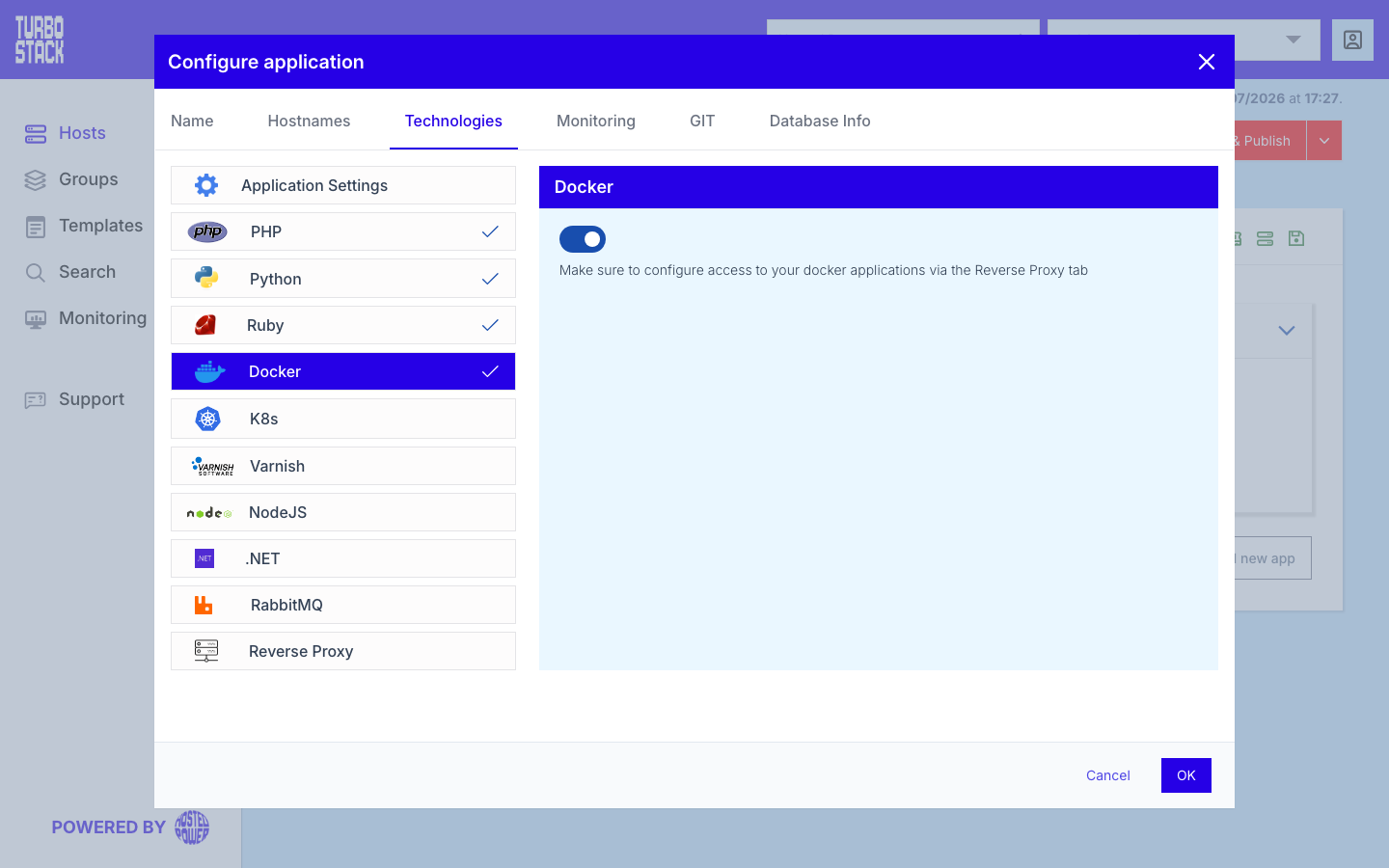
Where to configure it
Docker is enabled per application:
- Open the host and select the application.
- Go to Configure application > Technologies > Docker.
- Enable Docker.
To publish the container, also enable the reverse proxy and point its upstream port at the container's exposed port.
YAML configuration
Required
Optional
There are no additional Docker keys to set. To expose the container, configure
the reverse proxy keys (proxy_enabled, proxy_upstream_port) - see
Configure Reverse Proxy.
# Per-application: run a containerized app and proxy to it
docker_enabled: true
proxy_enabled: true
proxy_upstream_port: 3000   # the container's exposed port
Tip
Docker and the reverse proxy work together: Docker runs the container, and Nginx forwards public traffic to the container's port. Configure both for a publicly reachable containerized app.