
Configure SSH on TurboStack
How to authorize SSH keys, set the SSH port, and control password authentication for a host on TurboStack, with host-level YAML keys and an example.
Authorize keys and set the SSH options for a host so your team can open shell and SSH File Transfer Protocol (SFTP) sessions securely.
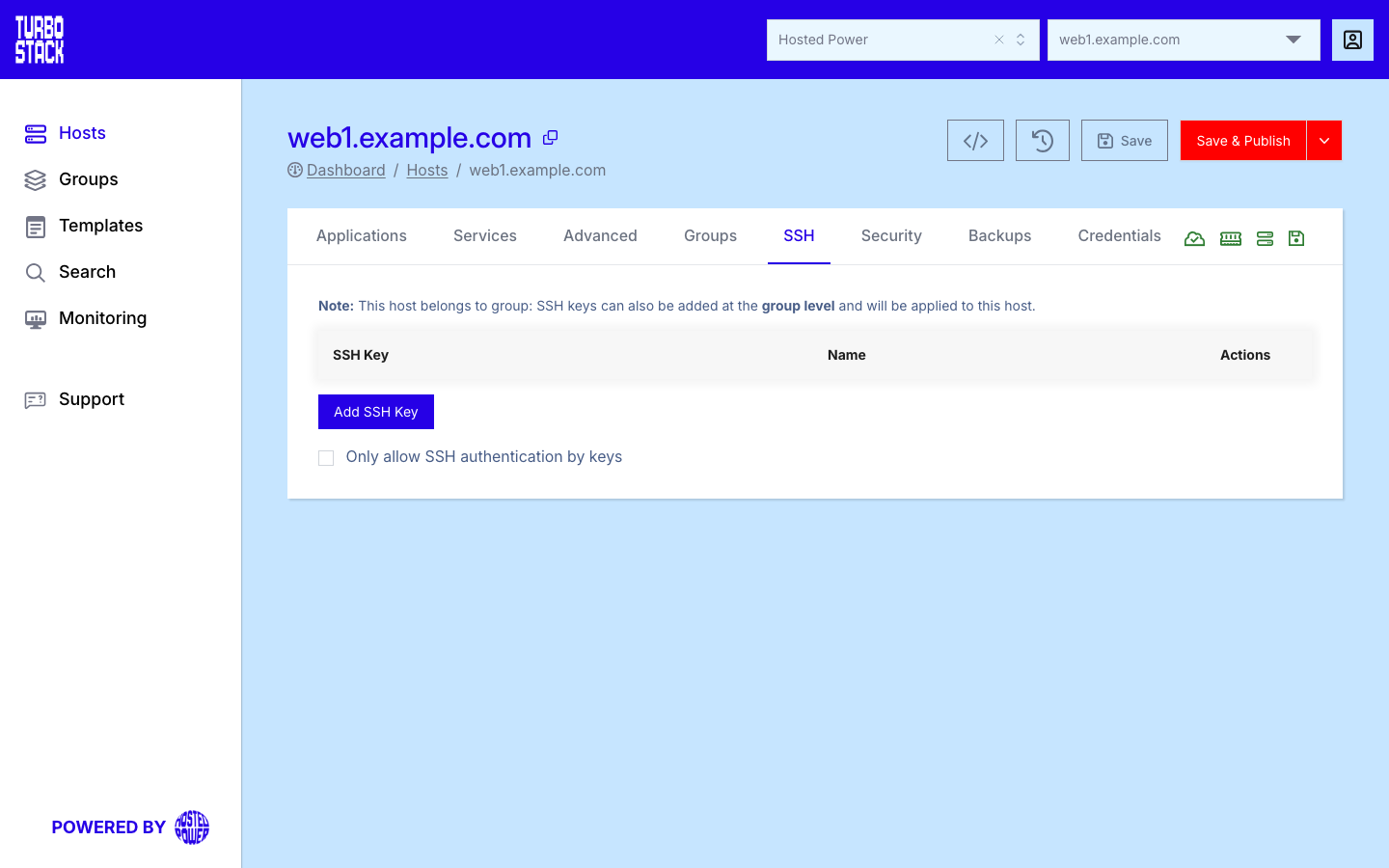
Where to configure it
SSH is configured at the host level:
- Open the host.
- Go to the SSH tab.
- Add authorized public keys and adjust the port and password-authentication options.
Keys set at the group level are inherited by member hosts.
YAML configuration
Required
Optional
# Host-level: authorized keys, custom port, key-only auth
ssh_keys:
  - "ssh-ed25519 AAAAC3NzaC1lZDI1NTE5AAAA... alice@example.com"
ssh_port: 22
ssh_passwords: false
Tip
Keep ssh_passwords set to false and rely on ssh_keys for authentication.
Shared keys can be defined once at the group level and inherited by every host.