
Logging in
You access TurboStack through your web browser. This page covers signing in, two-factor authentication, and choosing an account when you have more than one.
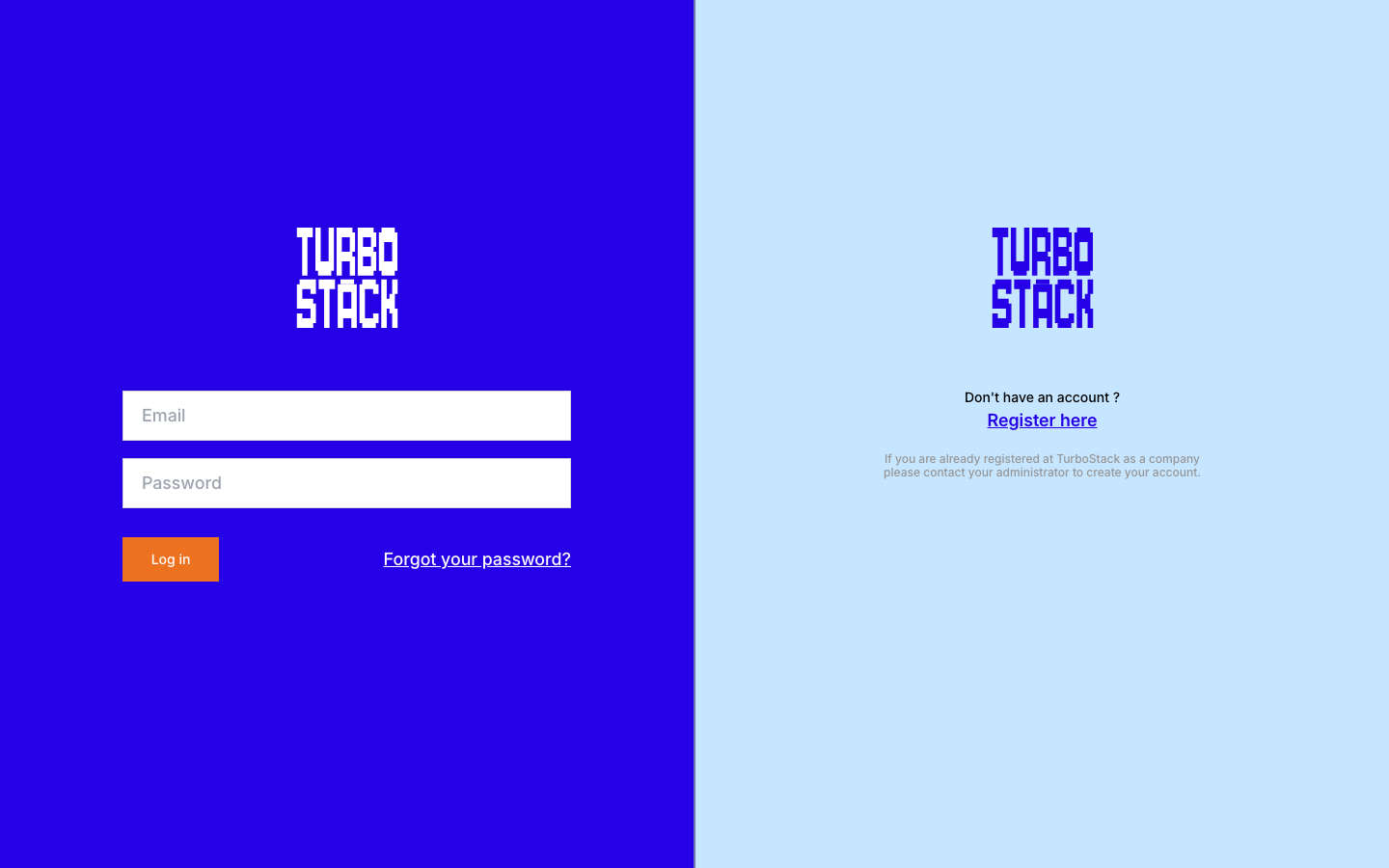
Signing in
- Open the TurboStack Platform in your browser.
- Enter your email address and password.
- Press Enter or click the sign-in button.
Tip
Forgot your password? Use the password-reset link on the sign-in screen to receive reset instructions.
Two-factor authentication
If two-factor authentication (2FA) is enabled on your account, you are asked for a one-time code after entering your password.
- Open your authenticator app and read the current code.
- Enter the code to continue.
- Optionally choose to be remembered on this device so you are not asked again for a while.
See Two-factor authentication to enable or manage 2FA.
Selecting an account
If your login is linked to more than one account, TurboStack asks you to choose which one to work in. Select the account to continue to its dashboard. You can switch accounts again later in the GUI.
After signing in
You land on Health, the platform's home page. It shows what needs attention across all your servers, ranked most important first, so you see the state of your infrastructure before you go looking for it. Your servers themselves are under Hosts in the sidebar.
From here, continue to Navigating the interface, read about Health, or jump straight to Managing hosts.
Next steps
- Selecting an account - choose an account if your login has more than one.
- Navigating the interface - find your way around.
- Two-factor authentication - secure your account.