
How to deploy an app with the Deploy your app wizard
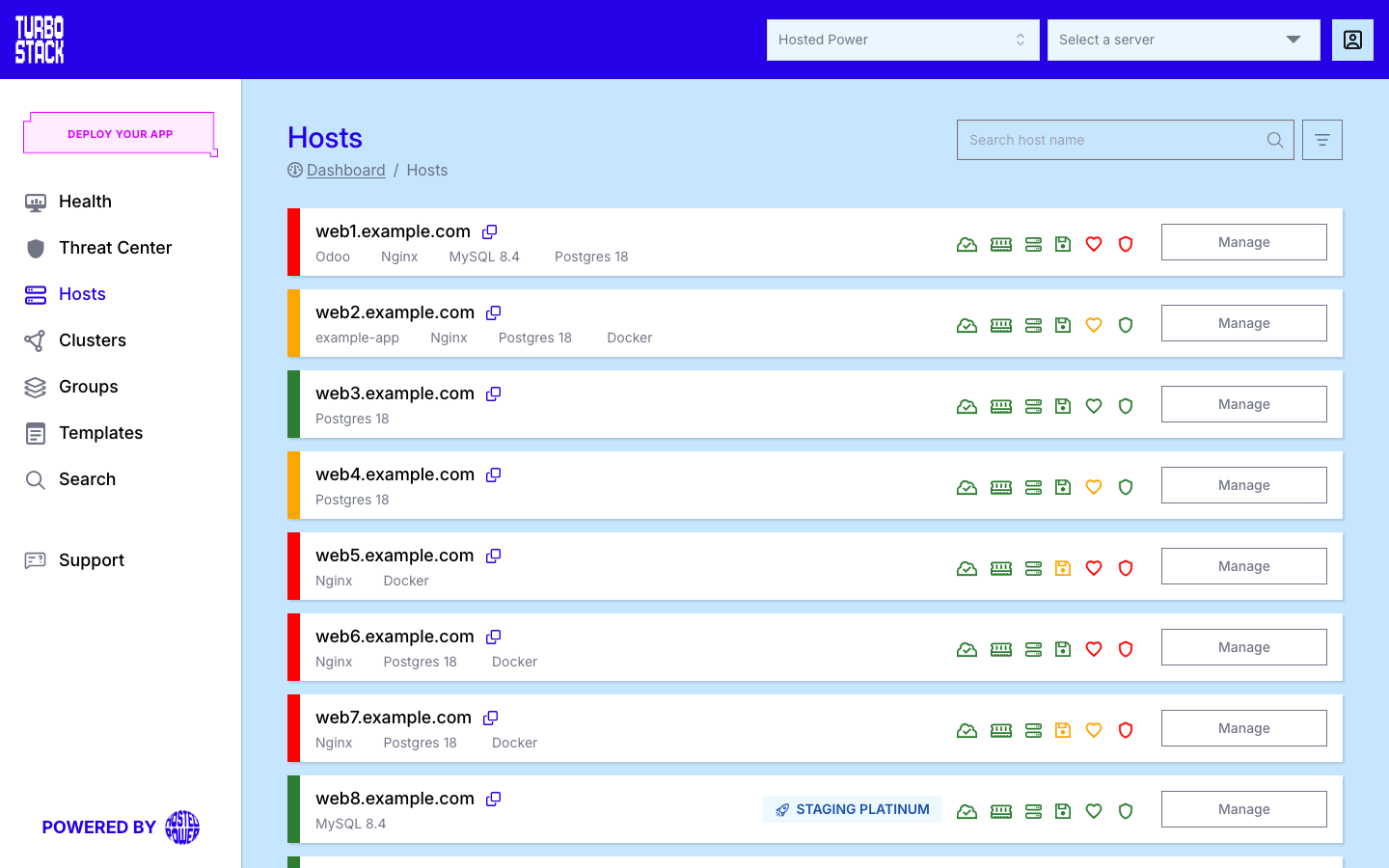
The Deploy your app button at the top of the sidebar opens a wizard. The wizard orders one or more hosts and deploys an application on them. You choose the application, then name and size the production host. You can add a staging and a development host. Then you answer the configuration questions the application still has, review the price and confirm.
Before you start
-
An account selected - the wizard orders hosts and licenses for the account you selected at sign-in, see Selecting an account. A sub-account orders on behalf of its parent account.
-
The host name (FQDN) of the production host, for example
web1.example.com. This is the name of the server, not the address of your website (www.example.com). It must not be in use by another host in your list. -
A name for the system user of the application, for example
prod. It must start with a lowercase letter and can contain only lowercase letters and numbers, up to 32 characters.
1. Choose your app
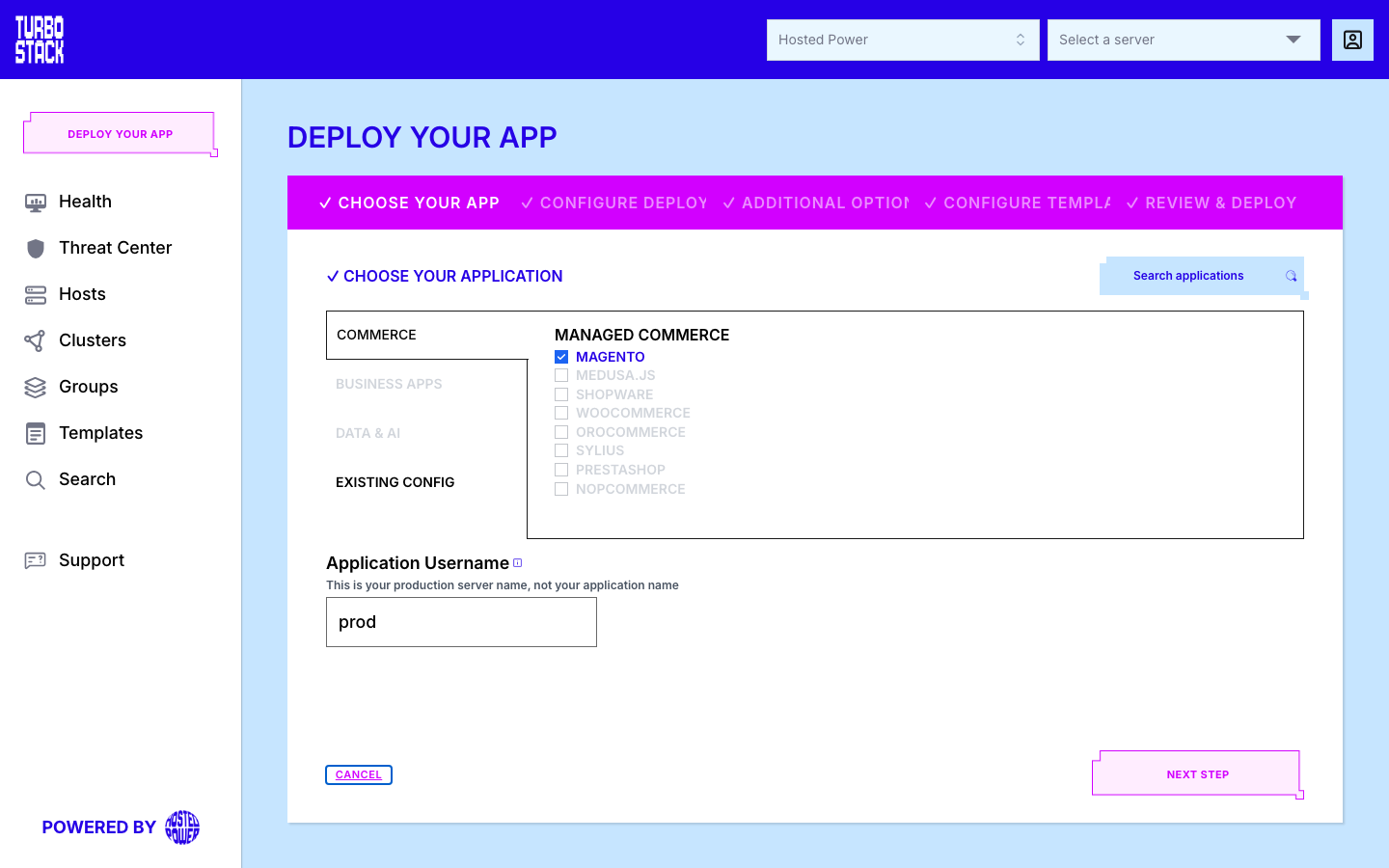
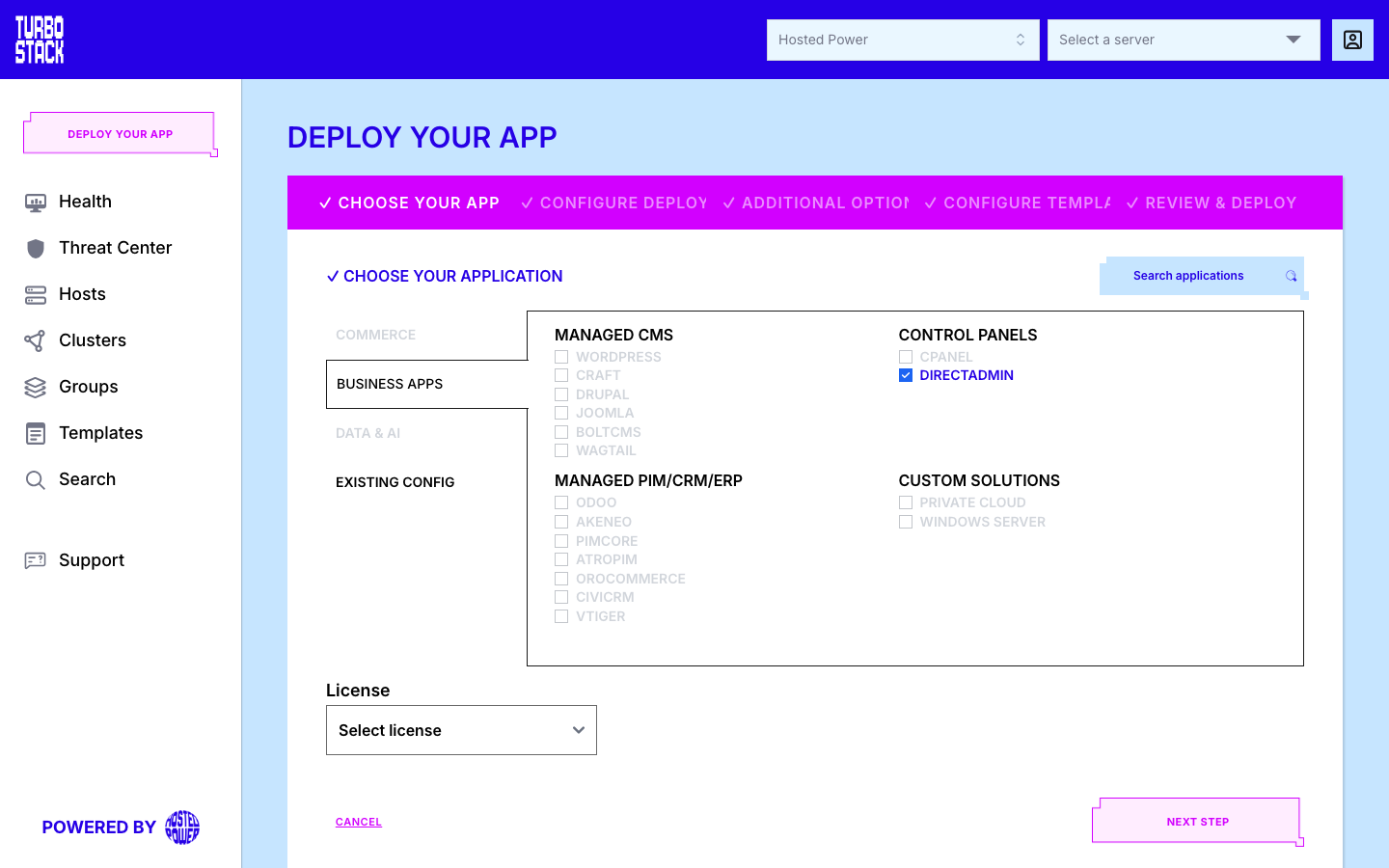
Open one of the tabs (Commerce, Business apps or Data & AI) and tick the application. Search applications filters the list. While an application is ticked, the other tabs are disabled.
-
Application Username - the system user that runs the application on the host. The same name is used as the application name in the host's configuration. Leave out
www., this is not a domain name. -
License - a control panel (cPanel, DirectAdmin) manages its own accounts, so it asks for a license instead of a username. When the application has one license, it is selected for you.
2. Configure deployment
-
Enter the Production host name (FQDN), the name of the server, for example
web1.example.com. The application starts with this name as its hostname. You add your own domain on the host afterwards, see Deploy your first site. -
Choose the flavour of the production host: Platinum or Standard. The info icon next to each flavour lists what it is meant for.
-
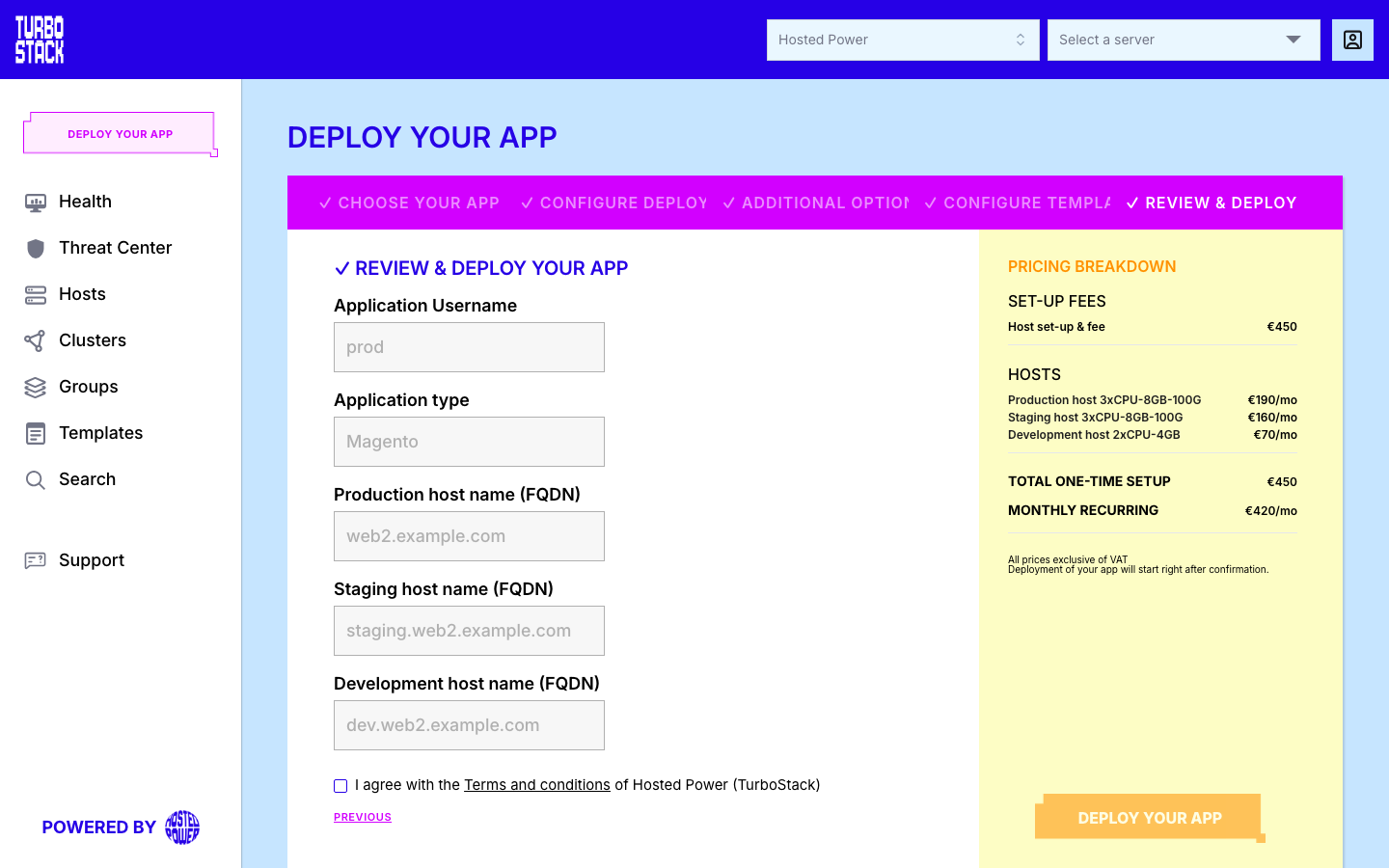
Tick a host size. The Pricing Breakdown on the right shows the one-time set-up fee and the monthly price, exclusive of Value Added Tax (VAT).
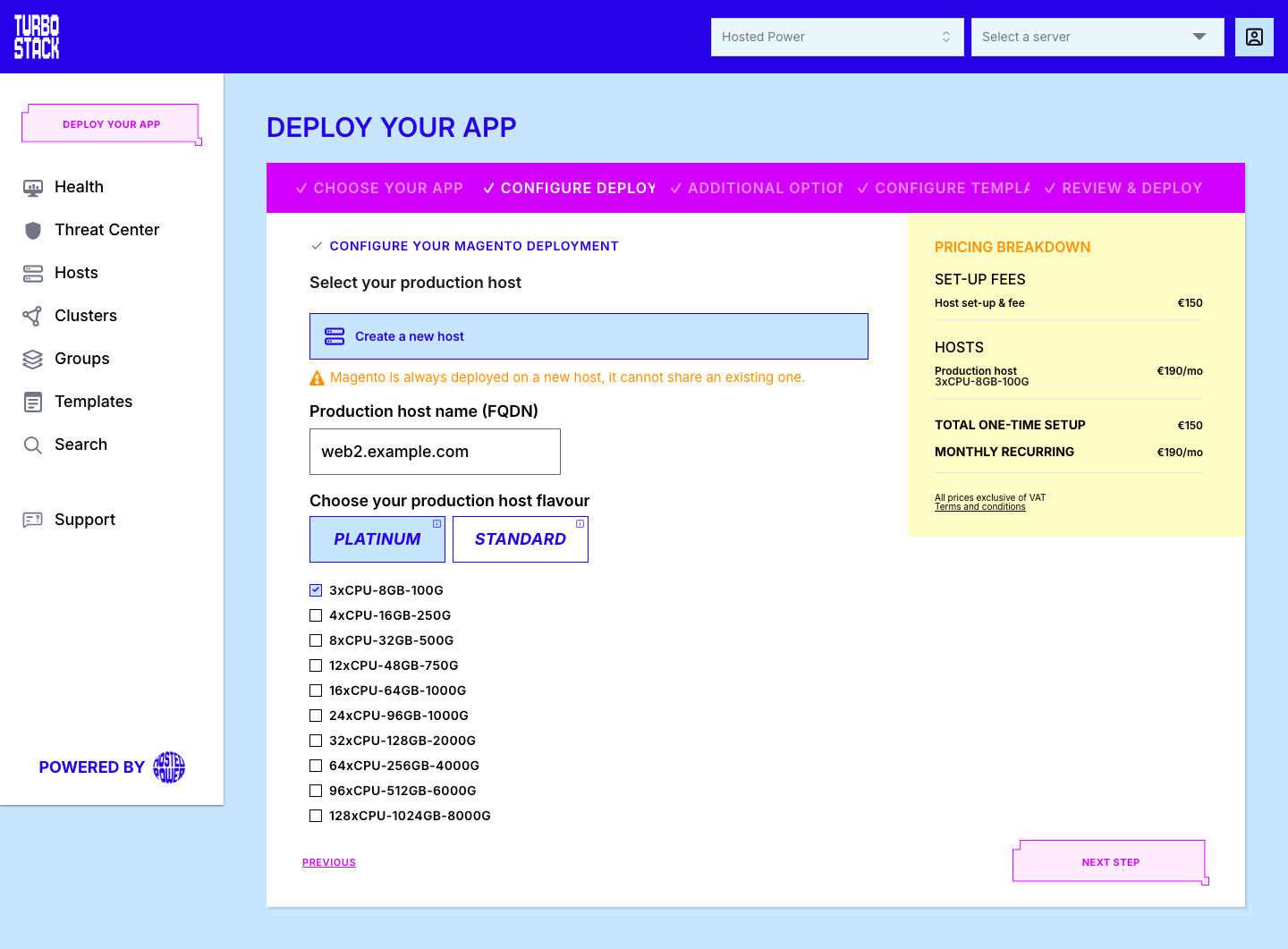
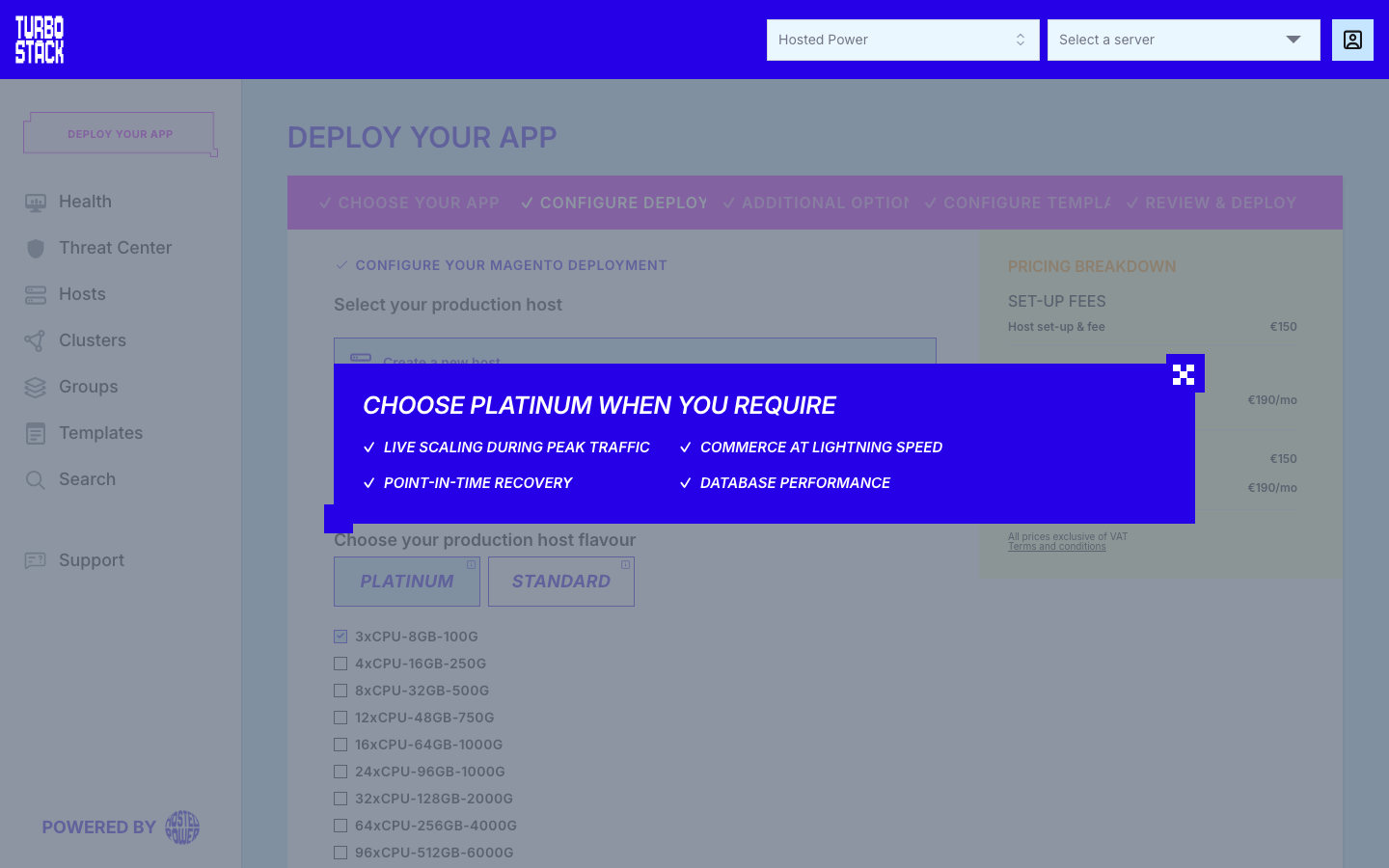
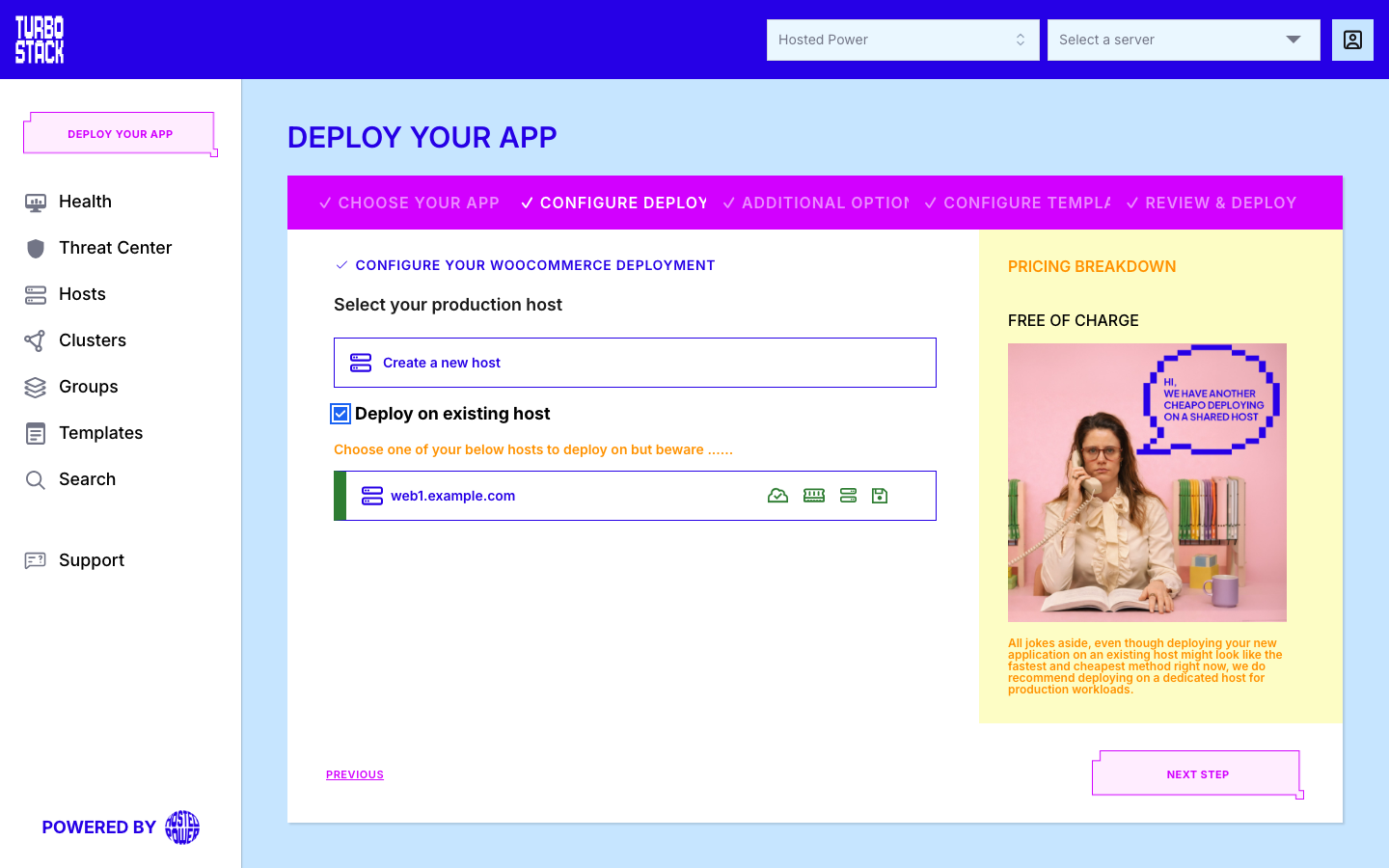
Some applications, such as Magento, are always deployed on a new host. For the other applications the wizard also offers Deploy on existing host: tick it and choose one of your production hosts. No host is ordered in that case, so this part is free of charge. A dedicated host is recommended for production workloads.
3. Additional options
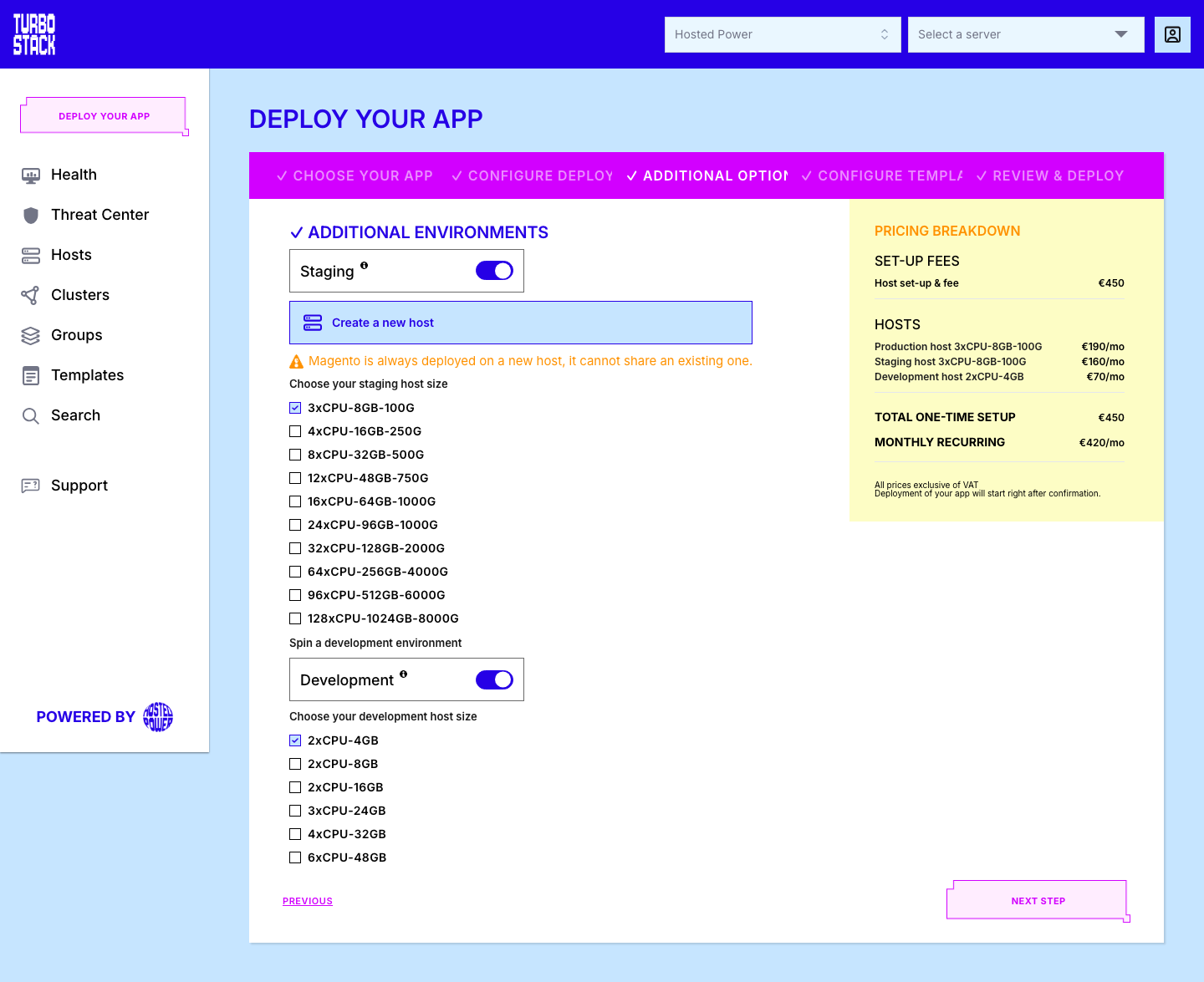
Staging and Development are switched on by default. Switch an environment off with its toggle if you do not need it. Development is only available together with Staging.
For each environment, choose a host size, or tick Deploy on existing host when you already have
a staging or development host. The new hosts are named after the production host:
staging.<production host> and dev.<production host>. Each new host adds its own set-up fee and
monthly price to the breakdown.
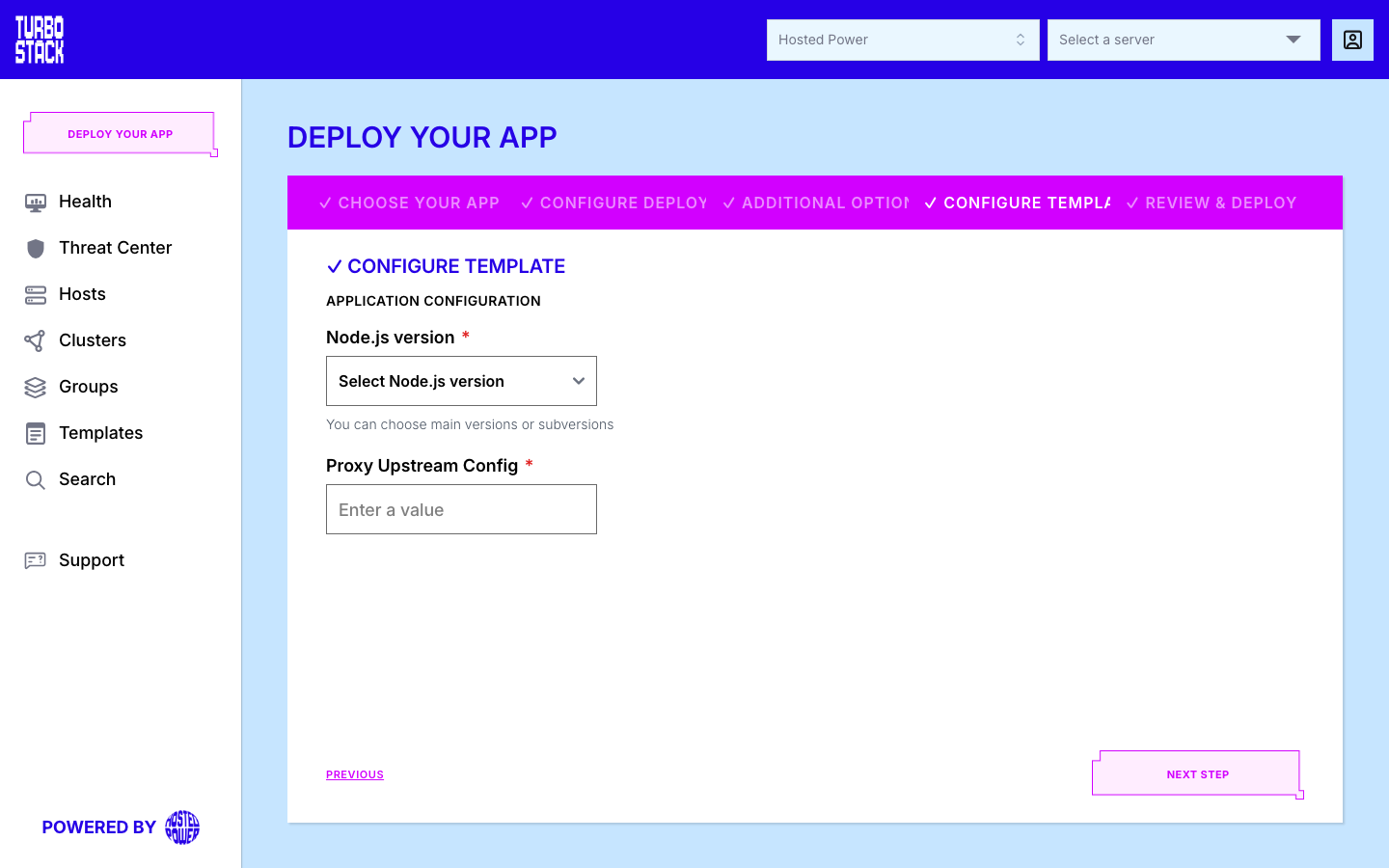
4. Configure template
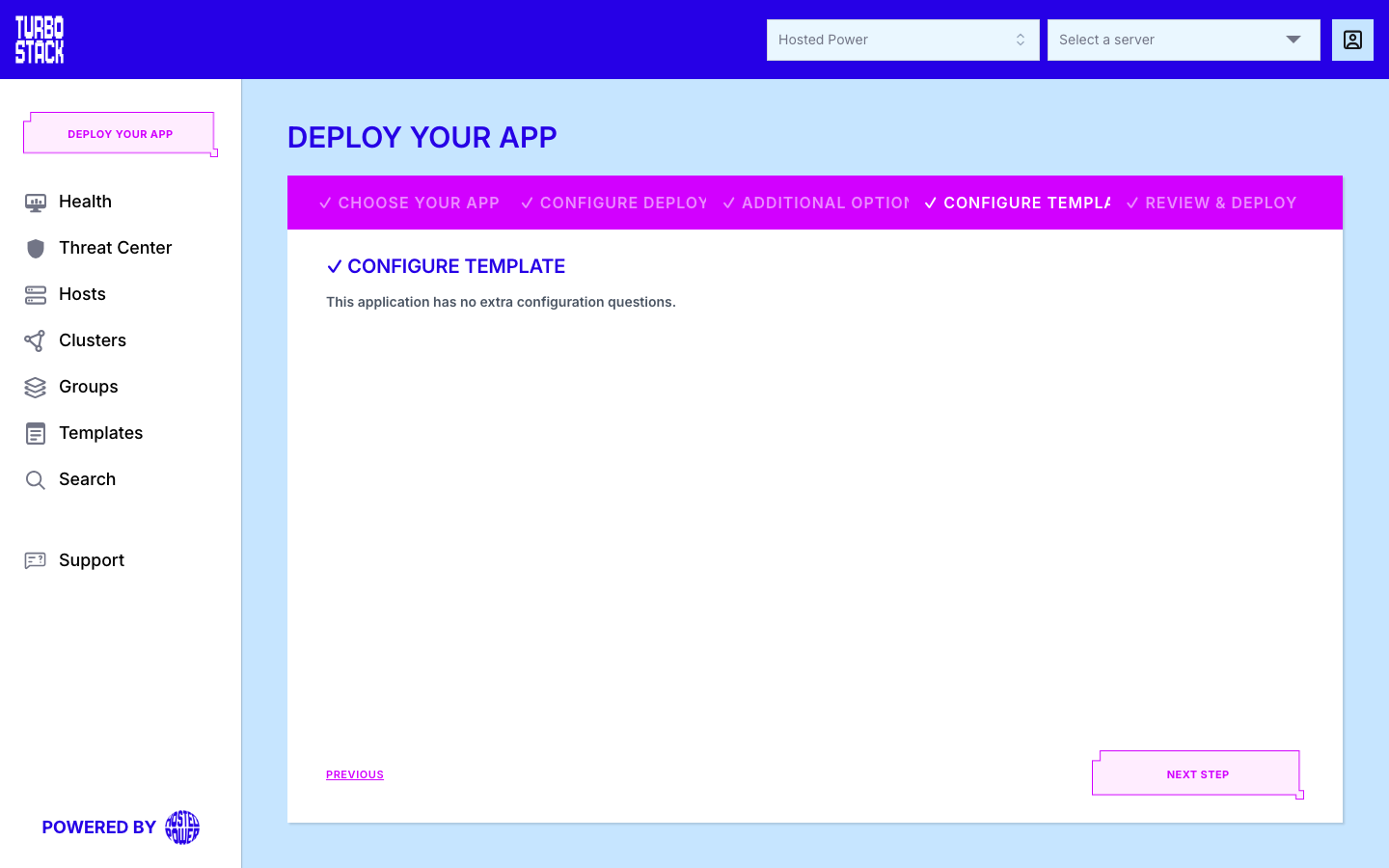
Each application is deployed from a configuration template. When the template does not fix a value, for example the Node.js version, the wizard asks for it here. All questions are required. Most applications have no open questions, and the step then says so.
5. Review and deploy
Check the summary: the username, the application type and the host names of production, staging and development. Tick I agree with the Terms and conditions. The Deploy your app button is disabled until you agree. Deployment of your app starts right after confirmation.
Alternative: copy the configuration of an existing host
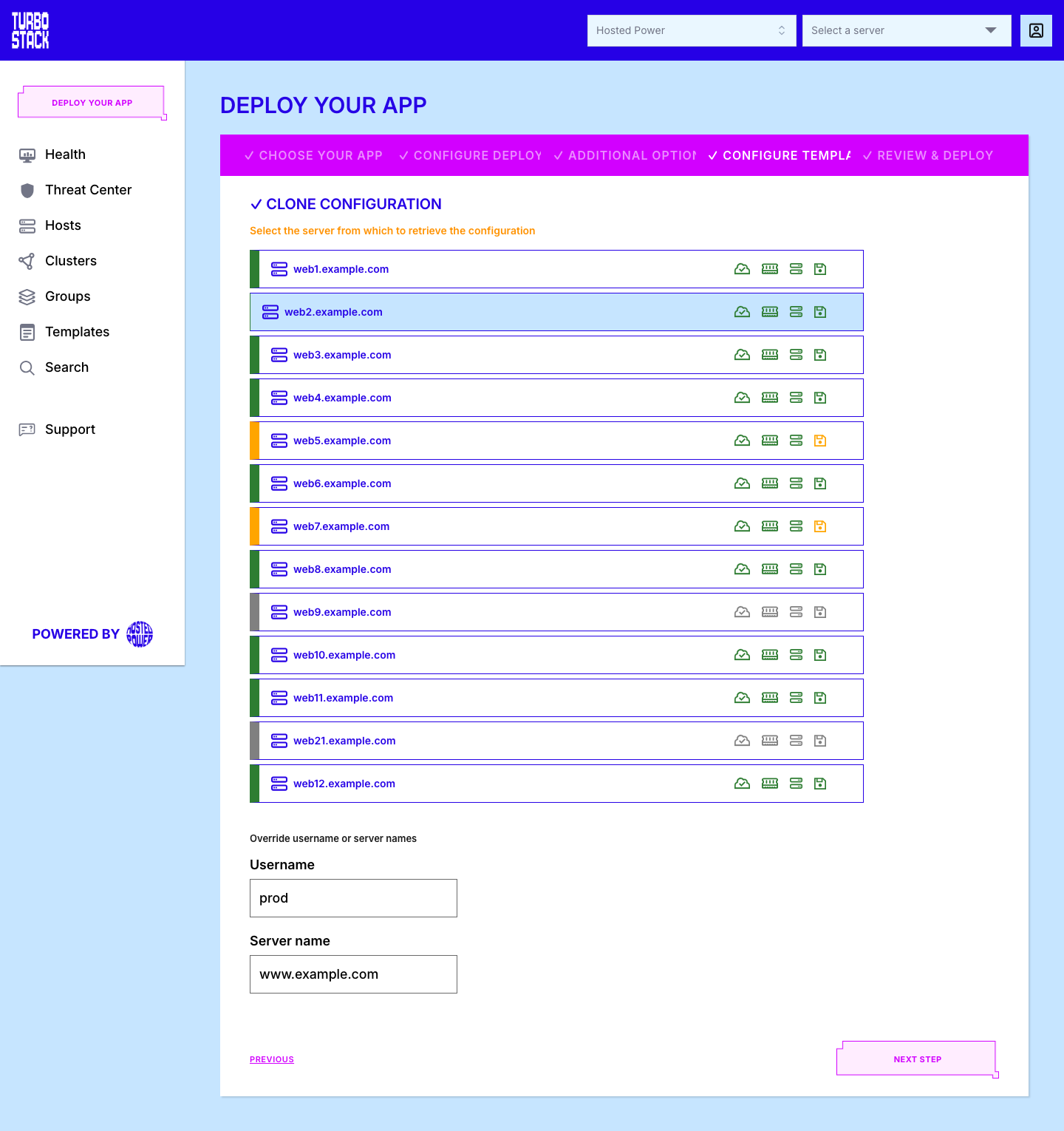
The Existing config tab appears when your account already has a host with a configuration. Tick Fork config from existing host and enter the Application Username. Steps 2 and 3 are the same as above. This option always creates a new host. In step 4, Clone configuration, select the host to copy the configuration from. The Username and Server name fields are filled in from that host, and you can change them before you continue. The new host receives a copy of the selected host's configuration with your changes applied.
Apply and verify
After confirmation the wizard shows Your deployment is underway! with a View your host link. The new hosts appear in your Hosts list with the application's configuration, and the host is delivered to you. The details of the deployment (application, hosts, options and prices) are also sent to you in a ticket named New app deployment. Any question about this deployment can stay in that ticket.
If it did not work
-
No customer selected - the wizard is unavailable without an account. Sign in and select an account first.
-
The host name must be unique - another host already uses this name. Choose a different host name.
-
... is always deployed on a new host - this application cannot share an existing host. Untick Deploy on existing host.
-
This host size is no longer available - pick another size from the list.
-
Anything else: contact support.
Related
-
Deploy your first site - the quick start once a host is in your list
-
Deploying applications - requirements and example configuration per application
-
Templates - the reusable host configurations the wizard deploys from
-
Hosts - manage the hosts the wizard created
-
Support - tickets and contact details