
Deploy your first site
This quick start walks you through deploying an application end to end: open your host, enable the services it needs, add the application, point your domain, and publish.
Tip
New to the concepts? Skim Core concepts first. For a deeper look at a specific application (Magento, WordPress, and others), see Deploying applications.
1. Open your host
Sign in and open Hosts, then select the host you want to configure. Your servers are provisioned by Hosted Power when you order them, so a host is ready in your list.

Note
Don't have a server yet? Deploy your app orders a host and deploys the application on it at the same time. Not sure which plan? Support can help you choose.
2. Enable the services you need
Services run at host level, so enable them before you add the application. Go to the Services tab and enable what your application requires:
- Web server - Nginx or Apache.
- Database - for example MySQL, and pick the version.
- Caching and queues - Redis, Varnish or RabbitMQ.
- Search - Elasticsearch or OpenSearch, if the application needs it.
Tip
Memory sizing is auto-tuned to the server. Enable the service and pick its version; only override the sizing with measured evidence.
3. Add your application
Go to the Applications tab -> Add app or database. In Configure application:
-
Hostnames - enter your domain in
server_name(e.g.example.com www.example.com) and set Certificate to Let's Encrypt for automatic HTTPS. -
Technologies - choose the App Type (for example WordPress or Magento) and the runtime version (such as PHP), then connect the services you enabled in step 2.
See Deploying applications for ready-to-copy settings per application.
4. Connect your domain
For Let's Encrypt to issue a certificate, your domain must point to the server. Copy the server's Public IPv4/IPv6 from the host's Credentials tab and create the matching Domain Name System (DNS) records at your provider. Full steps: Connecting your domain.
5. Publish
Click Save & Publish. TurboStack provisions the stack, installs the application, and requests the Transport Layer Security (TLS) certificate so the running server matches your configuration.
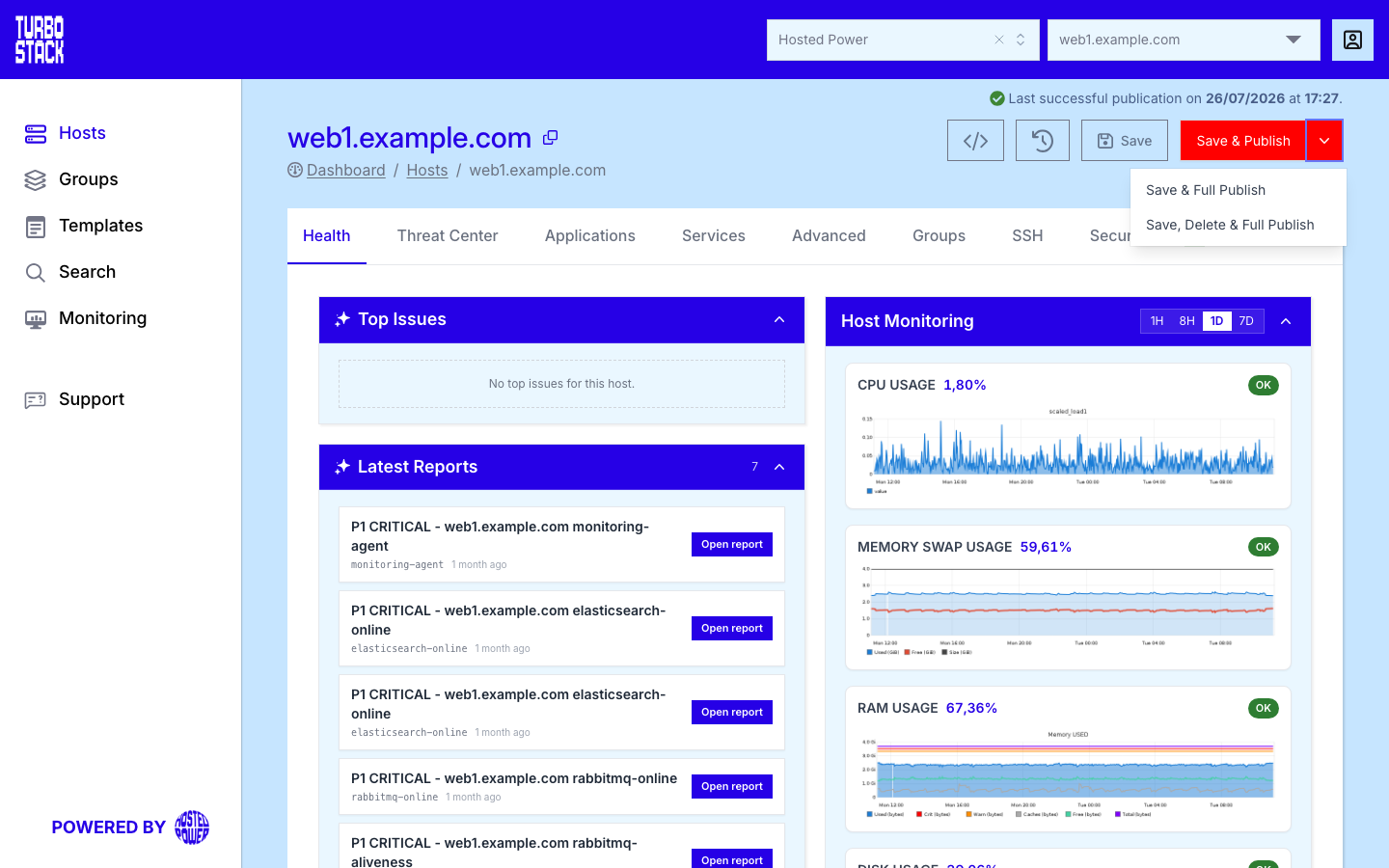
Follow the live progress in the publish dialog. When it finishes, your site is live over HTTPS. See Publishing changes for the deployment types and how to review logs.
6. Verify
- Open your domain in a browser - it should load over HTTPS.
- Check the host's Health tab for status and resource usage.
- Retrieve any app/database logins from the Credentials tab.
Next steps
- Connecting your domain - DNS records in detail.
- Deploying applications - per-application configuration and YAML.
- Publishing changes - deploy types, revisions and rollback.
- Security hardening - lock things down after launch.