
Publishing changes
Changing a host's configuration does not affect the running server until you publish it.
Save vs. publish - what each action doesDeployment types - choose the right publish modePreview what publishing will do - the On publish indicatorFollowing a deployment - track progress and review logs
Save vs. publish
-
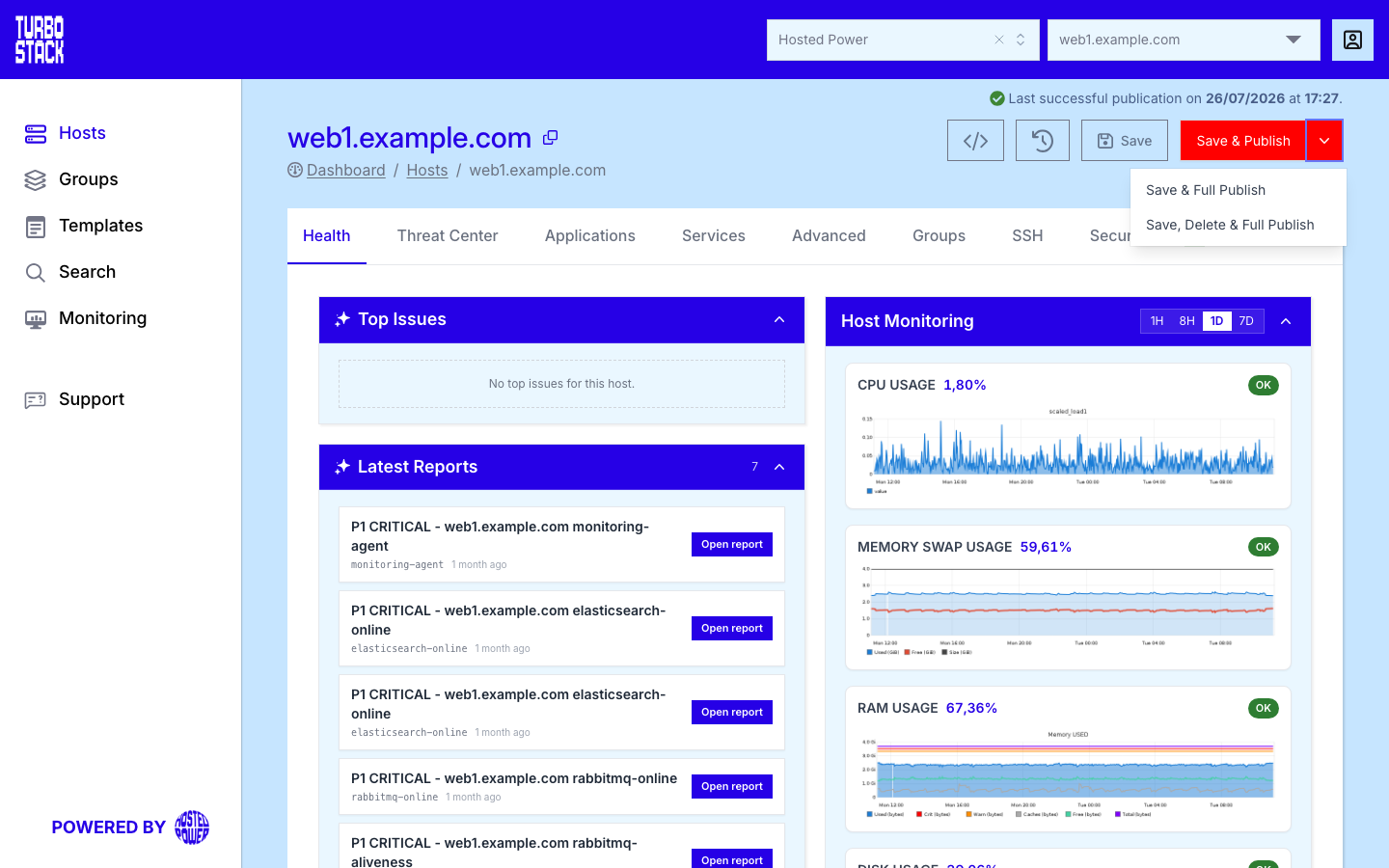
Save stores your changes in TurboStack only. The server is unchanged, and an unpublished changes badge appears as a reminder.
-
Save & Publish stores your changes and deploys them so the server matches your configuration.
Deployment types
Open the Save & Publish menu (the ▾ next to the button) to choose how the configuration is applied:
Warning
Save, Delete & Full Publish permanently destroys the data associated with objects you
removed from the configuration. You must type DELETE to confirm. Use it only when you are
certain.
Preview what publishing will do
Before you publish, TurboStack shows an On publish indicator in the host header and in the History view. It tells you the scope of the next publish, so there are no surprises:
TurboStack only escalates to a full deployment when a change is structural, such as adding a system user. Ordinary setting changes redeploy just the affected components. Changes that cancel each other out, or backup settings, do not trigger a deployment on their own.
Following a deployment
When you publish, a progress dialog tracks the deployment with a live spinner and the latest log output, refreshing automatically until the job finishes, errors, or times out. While a deployment is running, the publish and credentials actions are temporarily disabled to prevent overlapping deployments.
You can review every past deployment - including who triggered it, the result, and the full logs - on the Deploys tab of the History view.
Tip
If a change causes a problem, restore an earlier revision from the History view and publish it to roll back.