
Connecting your domain
Before you publish a site with automatic HTTPS, your domain must point to your server. This page shows you how to find your server's addresses, create the DNS records, and request a certificate.
Domain Name System (DNS) is the first step because Let's Encrypt validates ownership over HTTP: it connects to your domain and expects to reach your server. If the domain does not resolve to the server, certificate issuance fails and your site cannot serve HTTPS.
Find your server's IP addresses
- Open the host you want to publish to.
- Go to the Credentials tab.
- Copy the Server Public IPv4 value, and the Server Public IPv6 value if you plan to add an AAAA record.
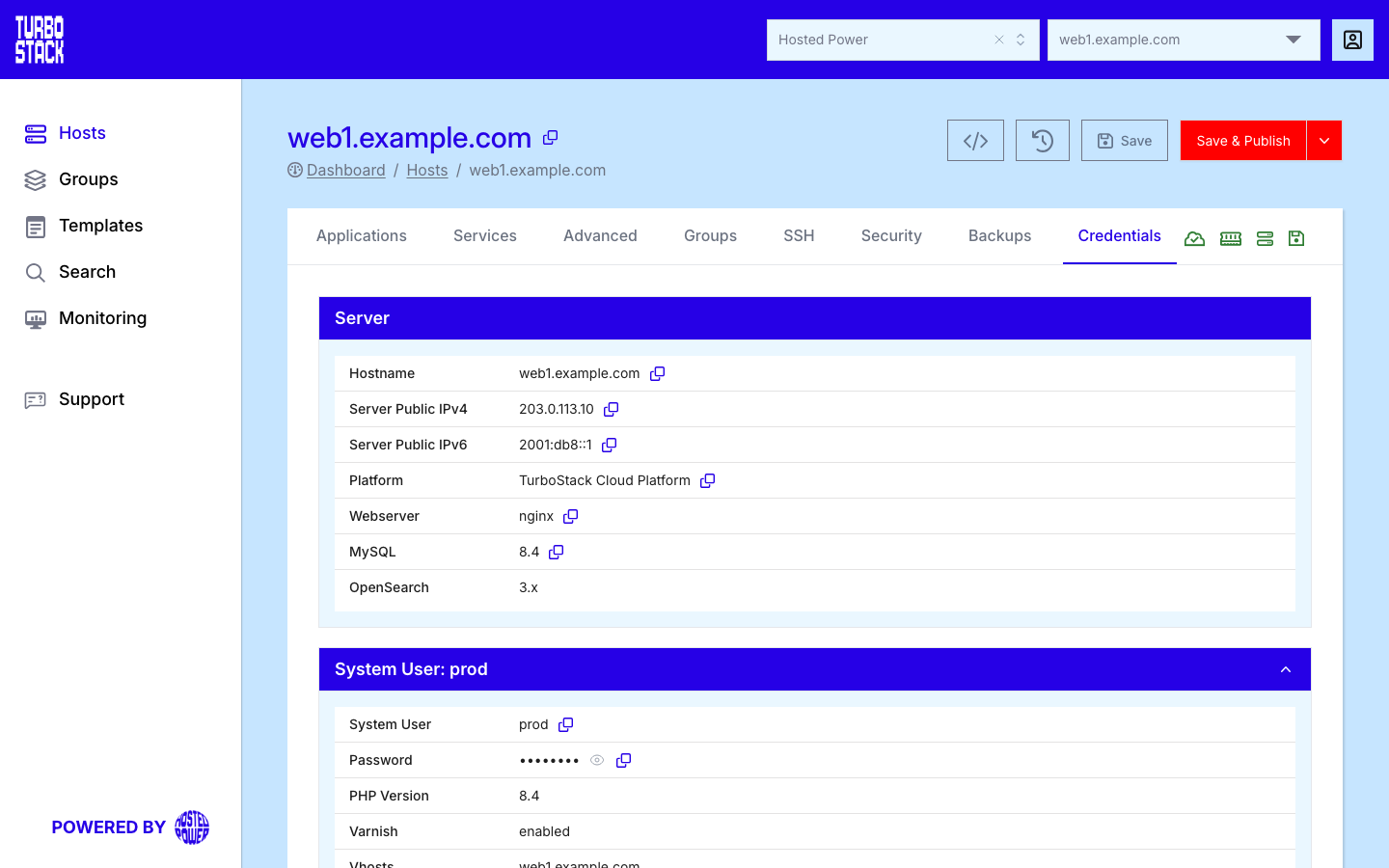
The same two addresses, each with a copy icon, are also shown on the application's Hostnames tab (see the next step).
Create the DNS records
At your DNS provider, create the records that point your domain to the addresses you just copied. If Hosted Power manages your DNS, create them in the Customer Center DNS management instead.
- Create an A record for the apex (
example.com) pointing to your IPv4 address. - Create an A record for
wwwpointing to the same IPv4 address. - (Recommended) Create matching AAAA records for both names pointing to your IPv6 address.
Note
DNS changes are not always instant. Propagation can take anywhere from a few minutes up to a few hours, depending on your provider and the previous record's Time to Live (TTL).
Point it in TurboStack
-
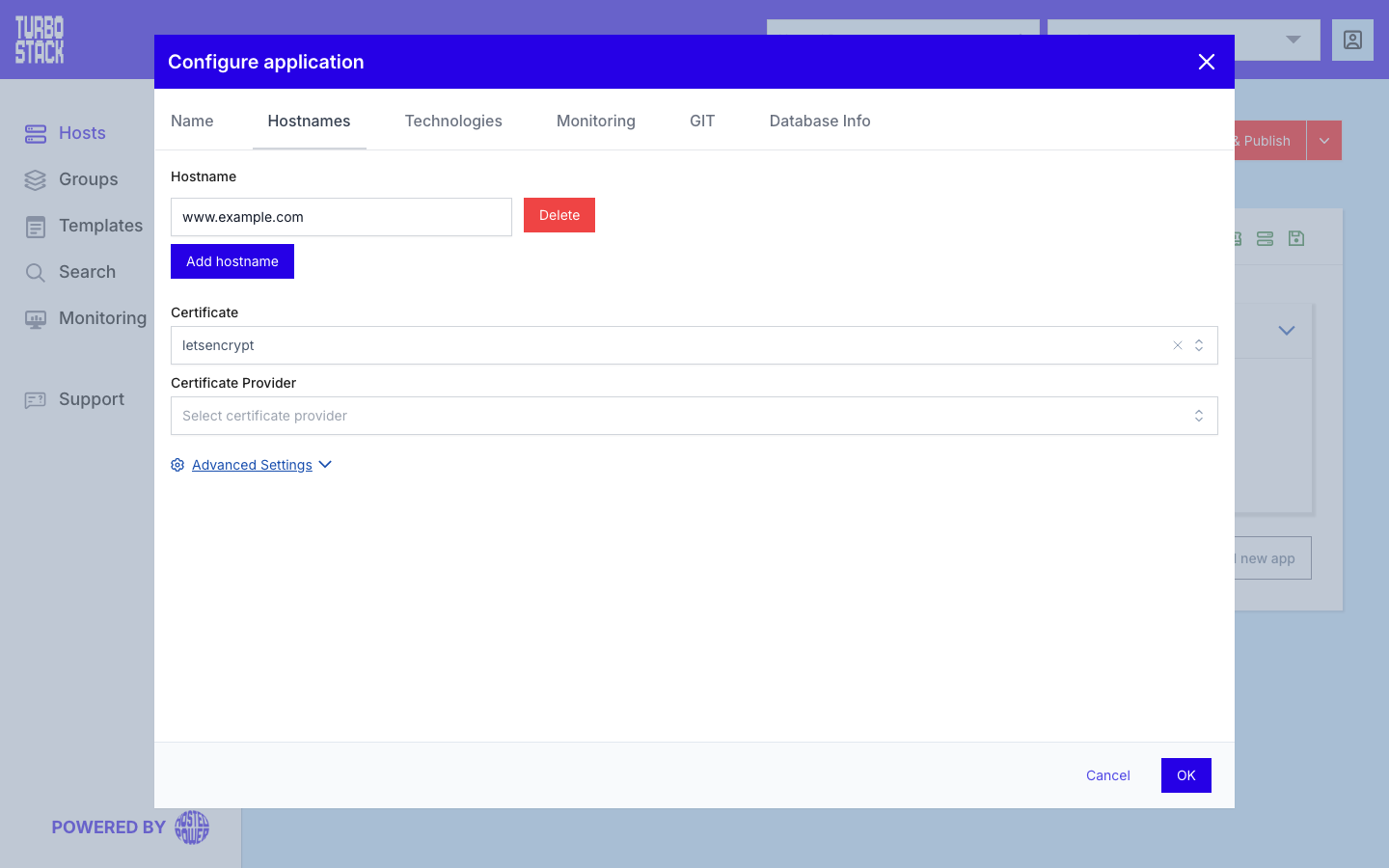
Open the application's settings and the Hostnames tab.
-
Add one row per domain with Add hostname - for example
example.comandwww.example.com. In the configuration this is theserver_namelist. -
Set the Certificate to Let's Encrypt (
cert_type: letsencrypt). -
Publish the host.
TurboStack requests the certificate from Let's Encrypt automatically during publishing, then renews it for you before it expires.
Check your records
The Hostnames tab checks every row against the server's addresses. Open the application again after your DNS change and look at the DNS column. A-record OK and AAAA-record OK mean the records point to this server. A red state names the record that still points elsewhere. A stale AAAA record next to a correct A record is the usual cause. The refresh icon checks again, but it cannot speed up DNS propagation: a record keeps its old value until its TTL expires. See Hostnames for every state.
Tip
For a domain that isn't pointed at the server yet, or for a wildcard certificate, use the DNS challenge instead of HTTP validation - see TLS certificates.
Note
If your account has DNS management enabled in the platform, you can create and manage these records directly from TurboStack instead of using an external DNS provider.
Next steps
- TLS certificates - HTTPS for your domain.
- Publishing changes - deploy your configuration.
- Applications - manage applications and domains.
- Credentials - server and account access details.
- Customer Center DNS management - manage DNS records when Hosted Power runs your DNS.
- Domains - register or transfer a domain.