
Configure OpenSearch on TurboStack
Enable OpenSearch and set its version at the host level, then optionally tune the JVM heap and plugins.
Where to configure it
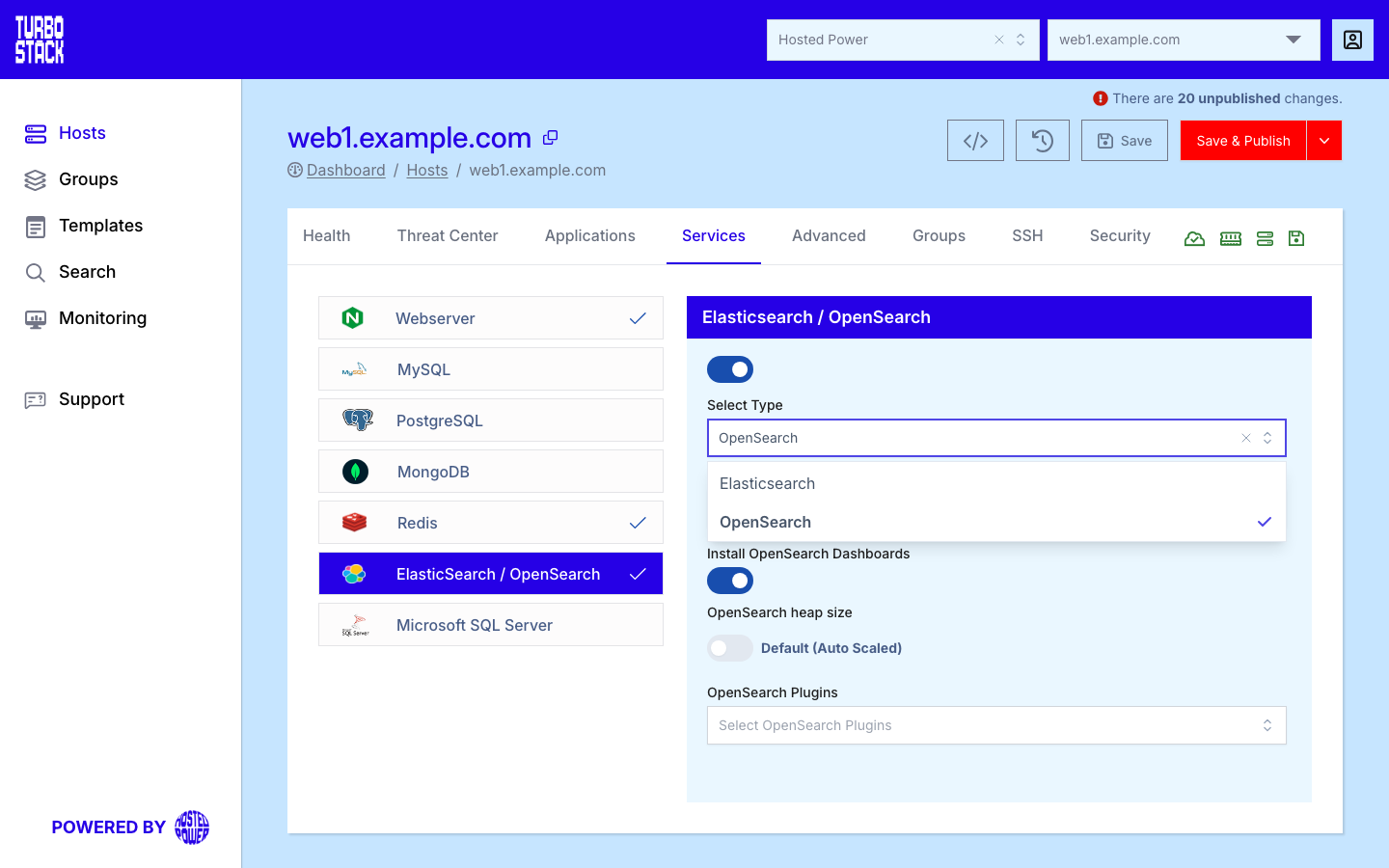
Open the host, go to the Services tab, select ElasticSearch / OpenSearch, and choose OpenSearch.
YAML configuration
Required
Optional
opensearch_version: "2.x"      # required: enable OpenSearch on the host
# opensearch_dashboards: true  # optional: the web interface
Listening address
OpenSearch accepts connections only from the host itself, which is what a single-server setup needs. If an application on another server has to reach the search engine, ask Support to open it up to your private network.
Warning
A search engine has no authentication of its own, so anything that can reach the port can read and change your indexes. It must never be reachable from the internet.
Dashboards
opensearch_dashboards: true installs the interface, which you then reach at
https://<host>/dashboards. The web server proxies that path and asks for a user name and
password first; use one of the host's system user accounts, the same credentials you use for SSH.
That login belongs to the web server, not to OpenSearch. Turn on
opensearch_dashboards_usermanagement when you need per-user accounts inside the dashboards
instead of one shared door. It is available only in the
Source (YAML) view.
Plugins
Plugins is a multi-select on the Services tab. The list you choose from is maintained by Hosted Power and changes as engine versions come and go, so check the dropdown for what is available today.
Two things happen automatically on the next deployment:
-
Removing a plugin from the list uninstalls it. TurboStack keeps track of the plugins it installed and removes only those, so the plugins that ship with OpenSearch itself are left alone.
-
Changing the OpenSearch version reinstalls every plugin, so each one is installed again for the new engine version.
Tip
Choose either OpenSearch or Elasticsearch on a host - not both. OpenSearch indices are backed up via nightly snapshots.