
Configure TurboShield on TurboStack
TurboShield is enabled by default with sensible settings. This page describes every setting, so you can adjust it when the defaults do not fit your traffic. For what each mechanism actually does, see What is TurboShield?.
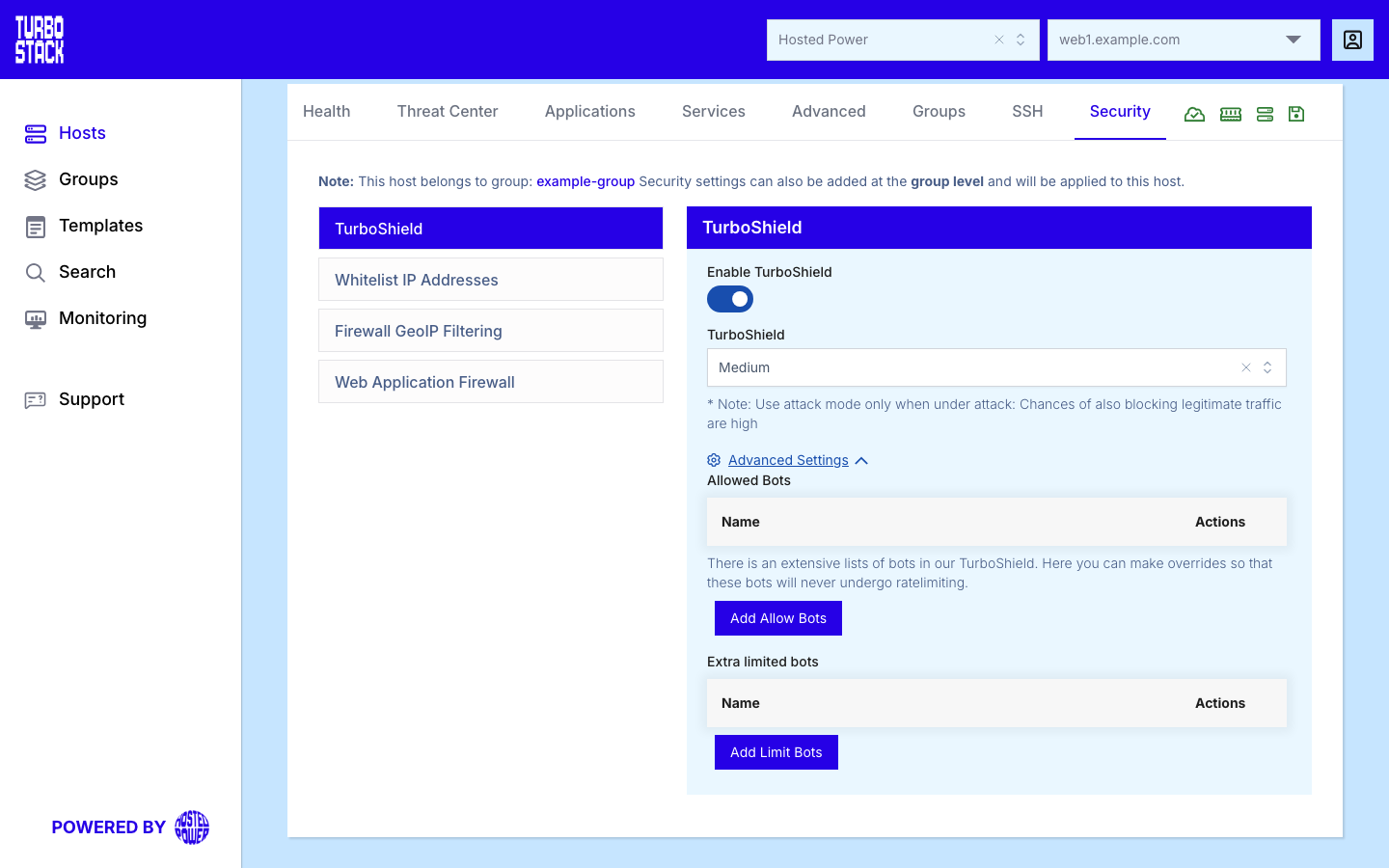
Where to configure it
TurboShield is configured at the host level and applies to every application on that host:
- Open the host.
- Go to the Security tab.
- Find the TurboShield section, then enable it and choose a protection level.
The GUI exposes the settings you need most often. The remaining settings are available in the
Source (YAML) view, grouped under the turboshield key.
Tip
Change one setting at a time and check your logs afterwards. Rate limits interact, so a large change in several settings at once makes it hard to see which one caused an effect.
Basic settings
turboshield:
  enabled: true
  level: medium
What each level actually does
The level is a single dial over several limits. Use this table when you need to know what you are
changing, rather than guessing between medium and high.
Note
The per-visitor limits look high compared to the bot limits on purpose. A real browser opens many connections and requests dozens of files for a single page view, so the general limit must allow that while the bot limits stay strict.
Bot lists
TurboShield ships with a curated classification of hundreds of known bots, and merges in a large community-maintained list of known bad bots on top of it. Two lists let you override that classification for individual bots. Each entry is a piece of the bot's name, in lowercase.
turboshield:
  allow_bots: [channable]
  limit_bots: [bytespider, gptbot]
Both lists are editable in the GUI: Allowed Bots and Extra limited bots, on the host's Security tab, in the TurboShield section under Advanced Settings. Each list is a table of names:
- Click Add Allow Bots or Add Limit Bots to add a row.
- Type the name, or the part of the name you want to match, and click Save.
- Use Edit to change an existing entry and Delete to remove it.
Tip
Rate-limiting a bot with limit_bots is especially helpful when it ignores the
crawl-delay directive in your robots.txt and keeps hammering the site regardless.
Note
An entry you add always wins over the built-in classification, and allowing beats limiting. So a bot you put in Allowed Bots keeps running even when the built-in lists would have throttled it.
Need a bot treated somewhere between these two, or blocked outright? Ask Support - there are finer gradations available than the two lists above.
Trusted clients
This is the most important list on the page. Addresses on it bypass every TurboShield check, are never rate-limited or challenged, and can never be banned automatically. The same list is also applied at the network firewall.
firewall_whitelist:
  - 203.0.113.10        # office
  - 198.51.100.0/24     # partner integration
Use it for:
-
Your own office or virtual private network (VPN), so your team is never affected by protection meant for strangers.
-
Partner and supplier integrations that poll frequently, such as an ERP, PIM or feed exporter.
-
External monitoring and uptime checks, which by nature look like a repetitive bot.
-
Load and security testing you run yourself, which otherwise looks exactly like an attack.
Warning
A trusted address skips all protection. Only add addresses you control or genuinely trust, and keep the list short. Never add a broad public range.
Hosted Power's own monitoring addresses are always trusted automatically, and you do not need to add them.
Bot challenge
The bot challenge asks suspicious visitors to complete an automatic browser check before they reach your site. It is off by default. See what it does.
turboshield:
  bot_protection: true
Some clients cannot solve a browser check at all, so whole categories of requests are never challenged: APIs, webhooks, payment callbacks, health checks and the standard endpoints of the common applications are excluded automatically.
The challenge also weighs how a page is being requested. Filtering, searching and sorting are the expensive operations that scrapers abuse, so a request that carries one of those counts as more suspicious. TurboShield already recognises the parameter names the common shop platforms use for this.
Tip
Turning the challenge on and finding that one of your own integrations now gets a page it cannot pass? Or a filter page that is not being scored the way you expect because your theme uses its own parameter names? Both are fixable - send Support the exact URL and they will add the exception for your environment.
When a level does not fit your traffic
Pick a different level first - that is the intended way to change how strict TurboShield is, and
it is what almost every environment uses.
If the ladder genuinely does not fit, there are lower-level overrides for the individual rates, bursts and connection limits. They are not documented here because getting them wrong either removes your protection or blocks real visitors. Contact Support with what you are seeing, and they will set the right value for your environment.
Tip
When the problem is one specific client - your own integration, a monitoring service, an agency
IP - add it to firewall_whitelist instead. That solves the case without loosening the limits
for everyone.
Which lists matter most
If you only maintain one thing, maintain the first row.
Full example
# Host-level security configuration
firewall_whitelist:
  - 203.0.113.10        # office
  - 198.51.100.0/24     # partner integration

turboshield:
  enabled: true
  level: medium

  # Bot policy
  allow_bots: [channable]
  limit_bots: [bytespider, gptbot]

  # Bot challenge, for a site under scraping pressure
  bot_protection: true
Publish the host to apply the change.
Related
- What is TurboShield?
- Host Security tab
- Firewall - ports, networks and country rules
- Security overview
- Block an IP address