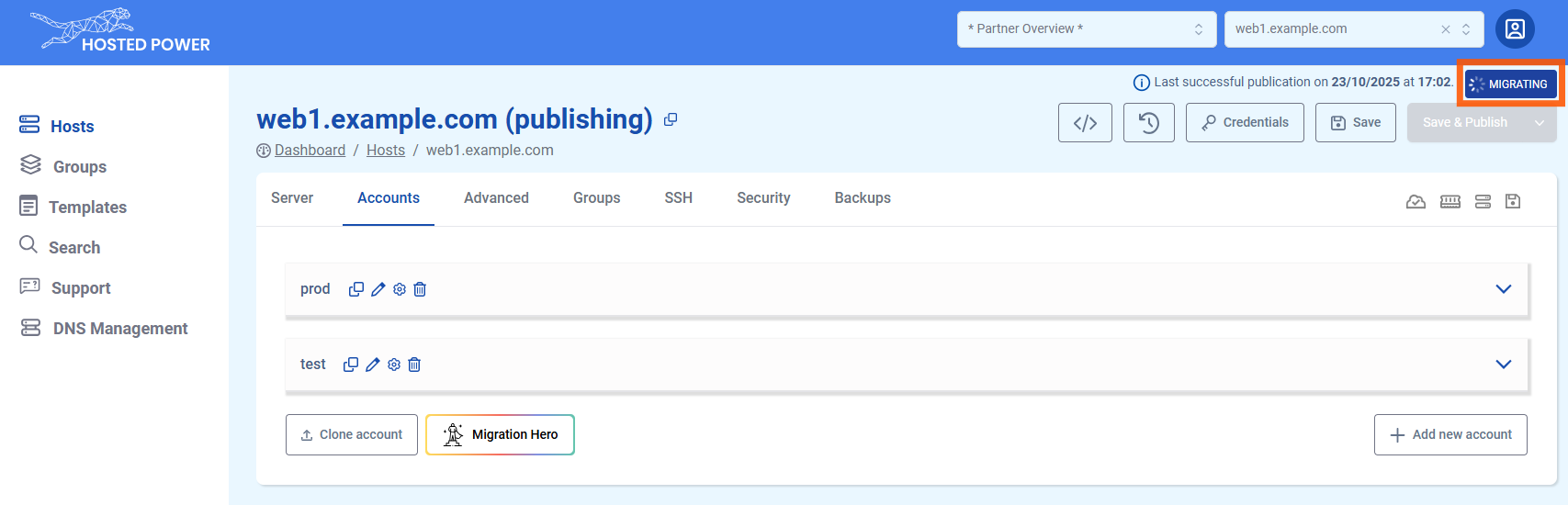

Migrating your application to TurboStack with Migration Hero
To simplify the migration of your external application to TurboStack, the Migration Hero feature is available. It automatically transfers the full configuration, files and database. Enabling a fast and efficient setup with minimal effort.
info
If you want to migrate an application from TurboStack to TurboStack, please use the Account Cloning feature.
Before starting, make sure you have already created an application and successfully performed a Save and Publish.
-
Navigate to the Accounts tab in the TurboStack Platform under your host.

-
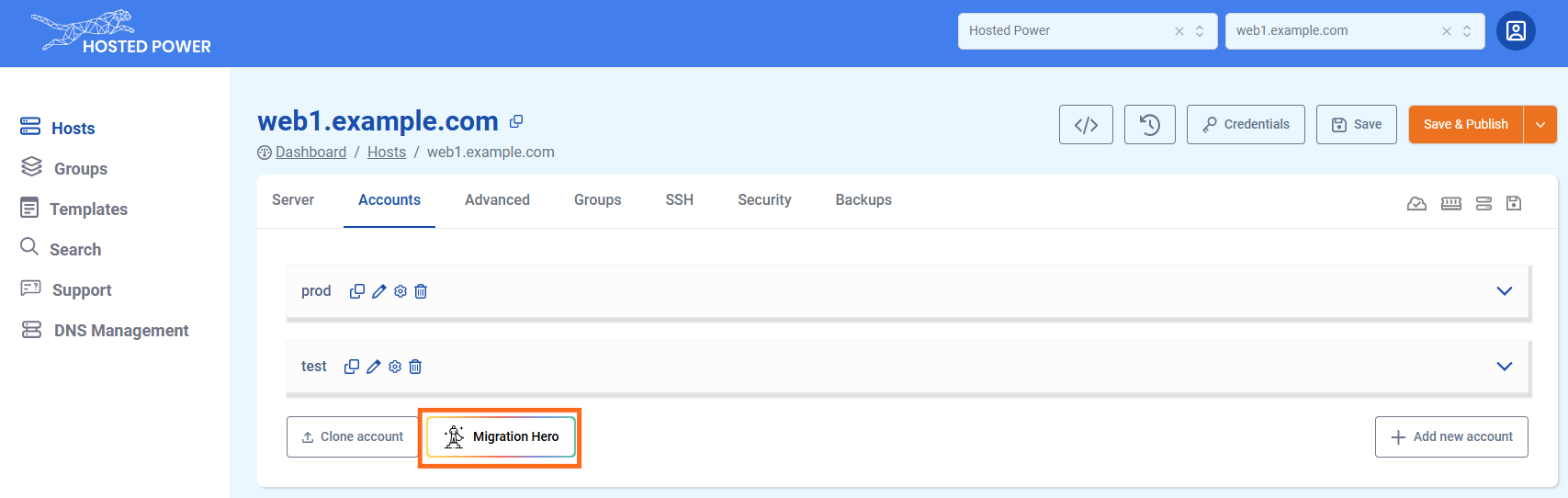
Click Migration Hero.
-
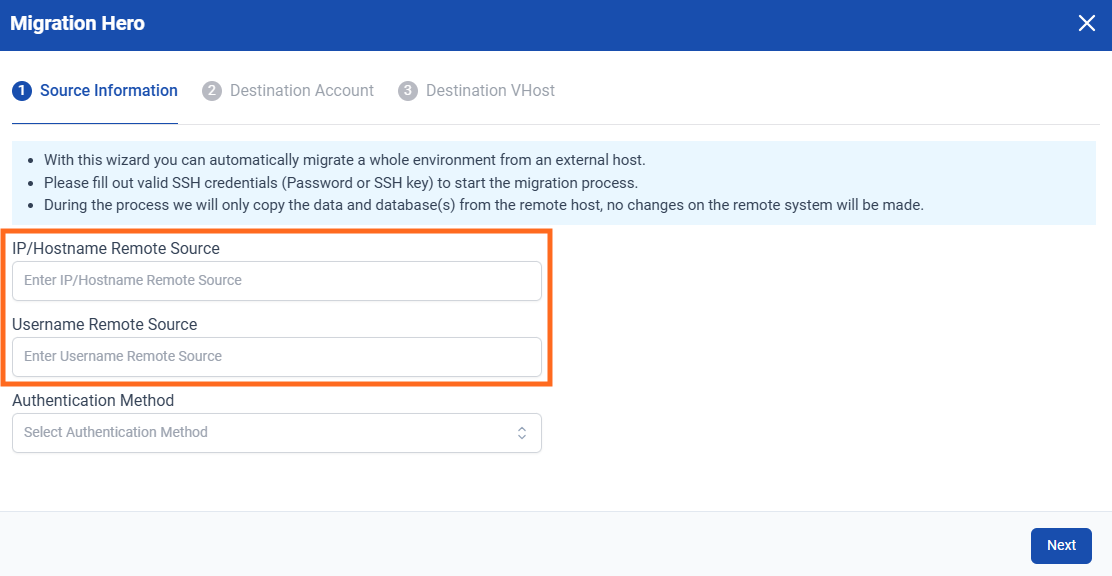
In the next step, enter the remote host and the user you want to migrate. Then, choose the authentication method you want to use to connect to the remote host.
-
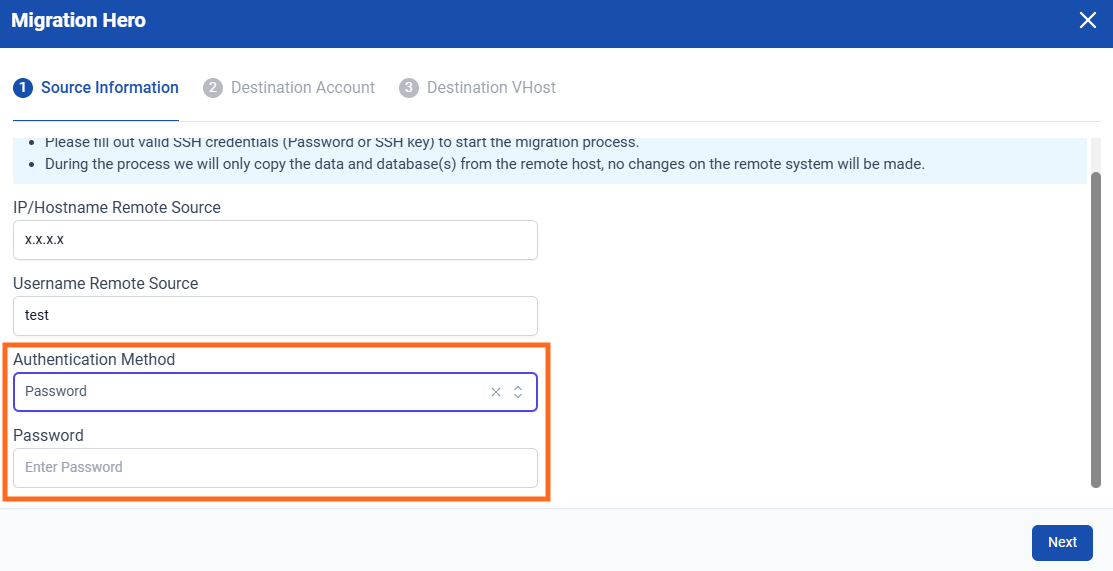
Option 1: Enter the password for the user on the remote host, then click Next.
-
Option 2: Generate and add the provided public SSH key to the
.ssh/authorized_keysfile on the remote host, then click Next.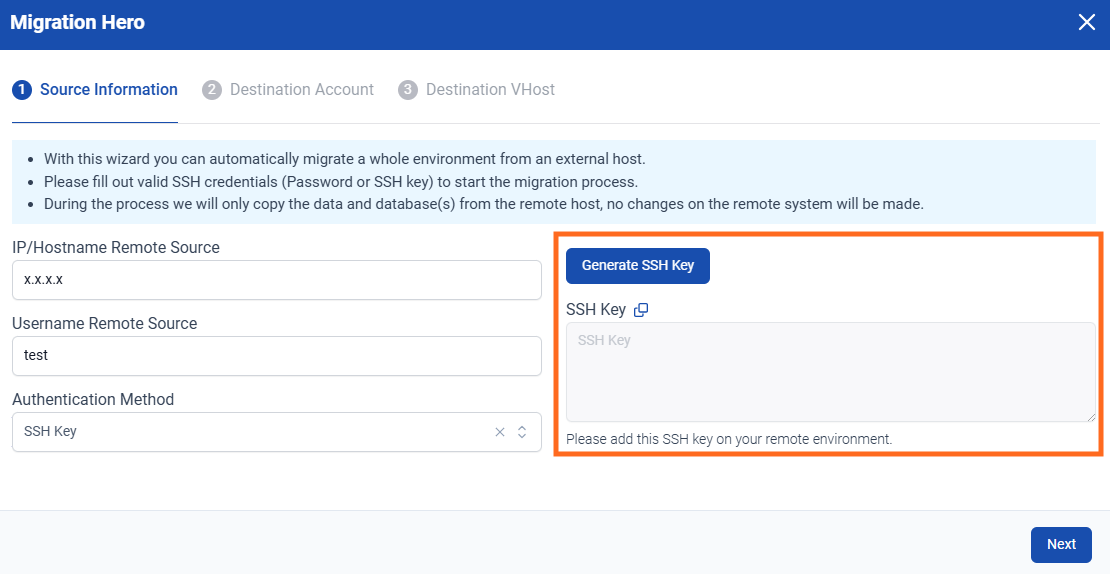
-
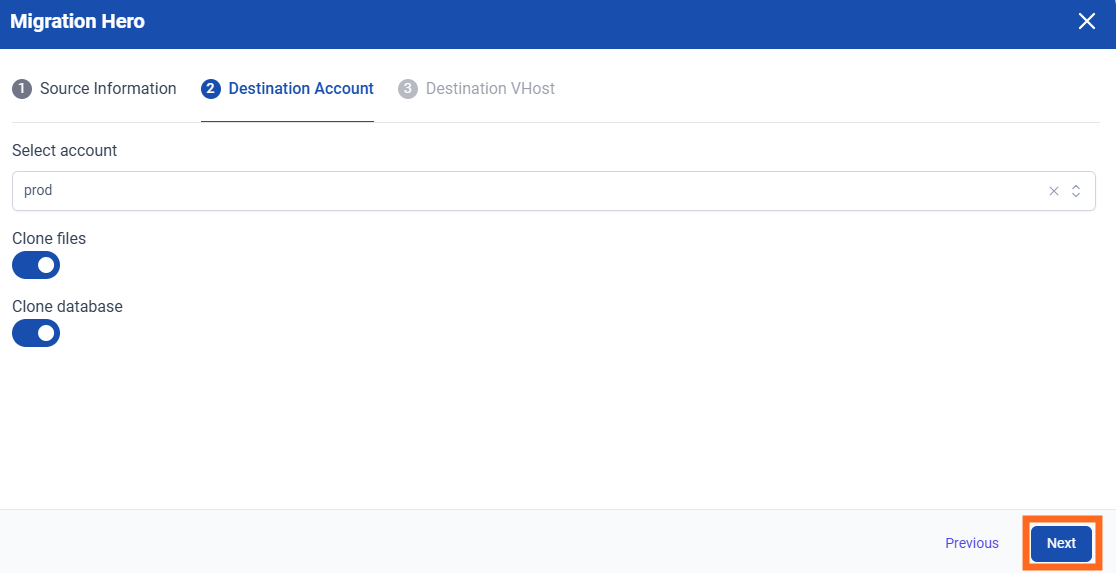
Choose the destination account (it must be an existing one) and select whether to migrate the database, files, or both. Then click Next.
-
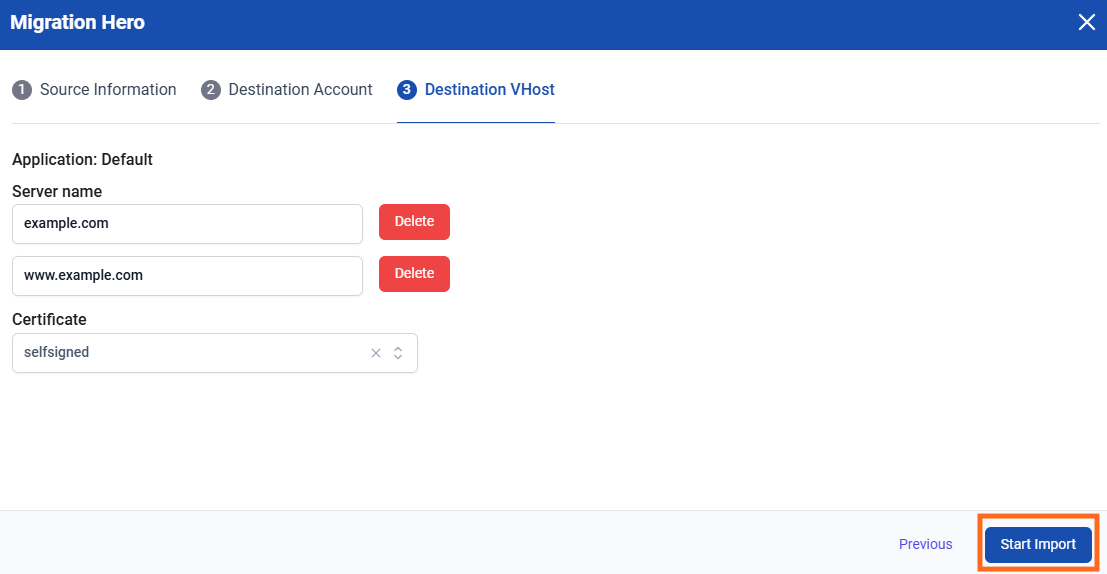
Select the hostname(s) you want to associate with the account and choose the type of certificate to generate. Click Start Import to begin the migration.
-
A migration progress popup will appear in the bottom-right corner. Once it finishes, your migration is complete!