
How to pause downtime monitoring while you work on a host
When you deploy an update or do maintenance that takes a site down for a while, the monitoring reports that downtime. The Hosted Power support team then follows it up. Pause Downtime Monitoring in the host header stops that for a period you choose. Afterwards the checks switch back on automatically.
Before you start
-
Access to the host in the TurboStack Platform. Anyone who can open the host can pause its monitoring.
-
An idea of how long the work takes. You choose 1, 2, 4 or 8 hours, or 1 day. Keep it as short as you can: real problems during the pause are not reported either.
Pause the monitoring
-
Open the host and select the bell icon in the header, between the Revisions (clock) icon and Save.
-
Read the summary in the popup. All checks of this server are paused: websites, services, disk, load and more.
-
Choose a period under Pause for.
-
Select Pause monitoring. The popup closes after a few seconds.

The pause needs no publish and changes nothing in the host's configuration.
While the pause runs
- The bell in the host header turns orange. Hover it to see until when the monitoring is paused.
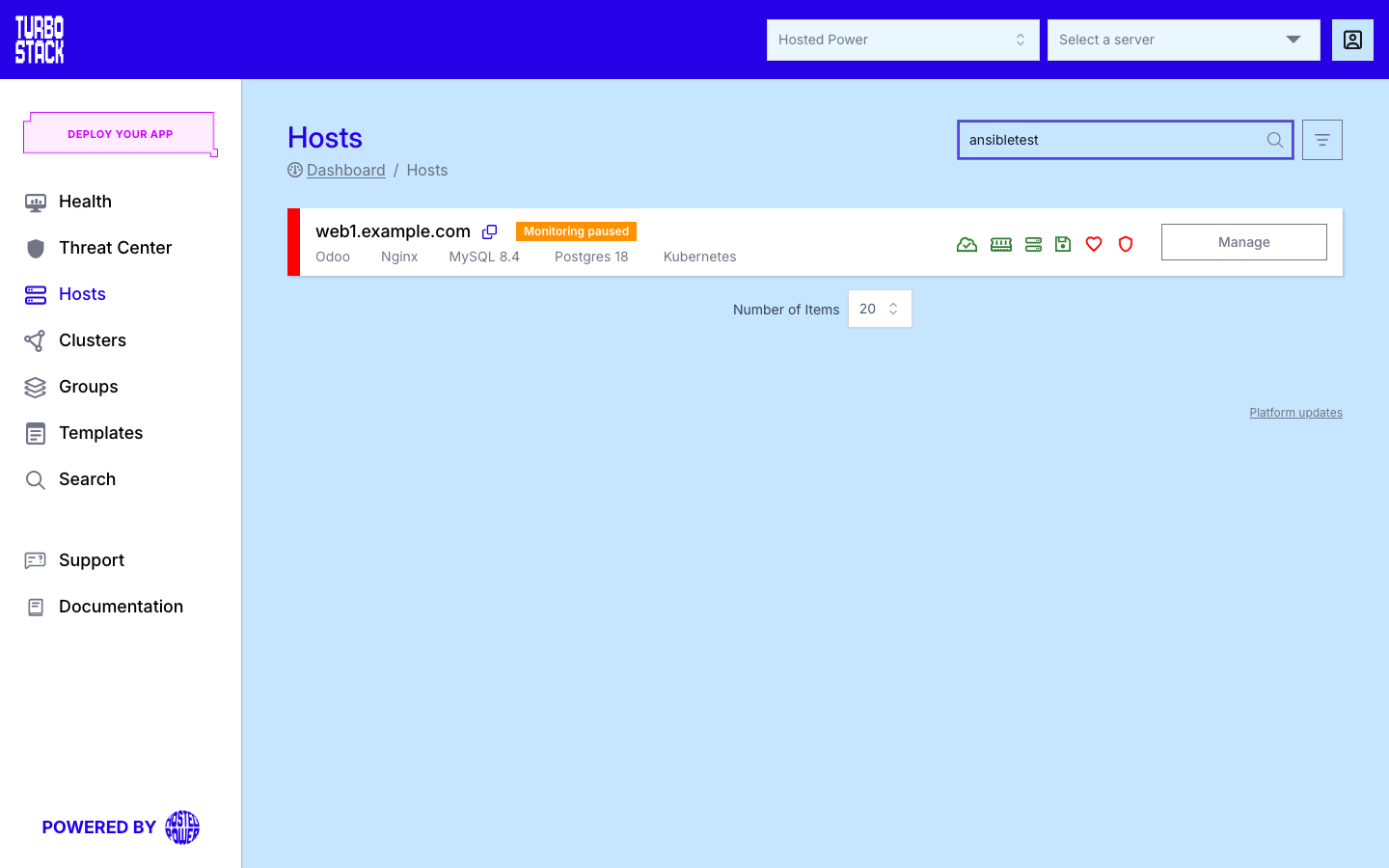
- The Hosts list shows an orange Monitoring paused badge next to the host name.
- Selecting the bell again shows who paused the monitoring and until when.

Resume the monitoring
The monitoring resumes by itself when the period ends. When you finish earlier, select the bell and then Resume monitoring, so real problems are reported again. Anyone with access to the host can resume it, not only the person who paused it.
Verify
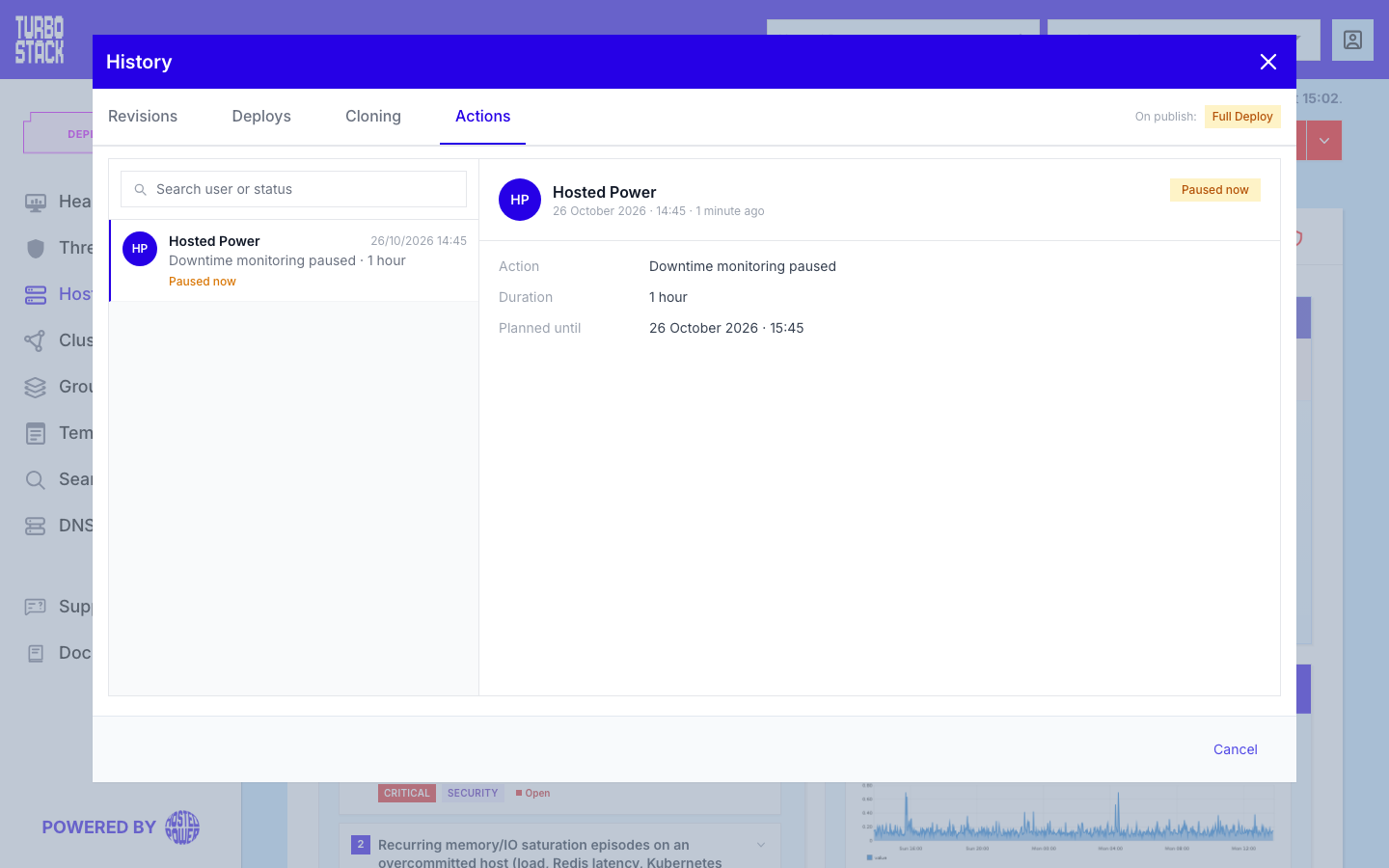
Open the Revisions (clock) icon and the Actions tab of the History view. Every pause is listed there with who started it, the duration, the planned end and a status: Paused now, Resumed early or Ended on time.
If it did not work
-
"This server is not known in our monitoring, so there is nothing to pause." - the host is not monitored yet, for example right after it was created. Nothing was paused.
-
"Monitoring could not be updated" - nothing was changed. Try again in a minute, or contact support.
-
The bell stays orange after Resume monitoring - the resume failed and the pause is still active. Try again. If it keeps failing, contact support so the alerts are switched back on.
Related
- History - revisions, deploys, cloning and actions - the Actions tab
- Hosts - the host header and the Hosts list
- Health (per host) - the checks that are paused
- Publishing changes