
How to set the Node.js version
Each application chooses its own Node.js major version. Set it when you deploy an app, or when you move an existing app to a newer runtime.
Before you start
-
Know which Node.js versions your app supports. Not every app runs on every version: a framework built for Node.js 20 may fail on 24, and an old app may not start on a new version at all. Where to find it:
-
Every Node.js app has a
package.jsonfile in its root folder. If it contains anenginesentry, that is the developers' own statement of the versions they built and tested for:"engines": { "node": ">=20 <25" }This example means: any version from 20 up to, but not including, 25. Pick the newest version in that range that the dropdown offers.
-
If there is no
enginesentry, the app's release notes or system requirements page say which versions are supported. When in doubt, ask the developer who built the app.
-
- Access to the application's Technologies settings, or the Source (YAML) view.
- A staging copy to test on first, if the app is in production.
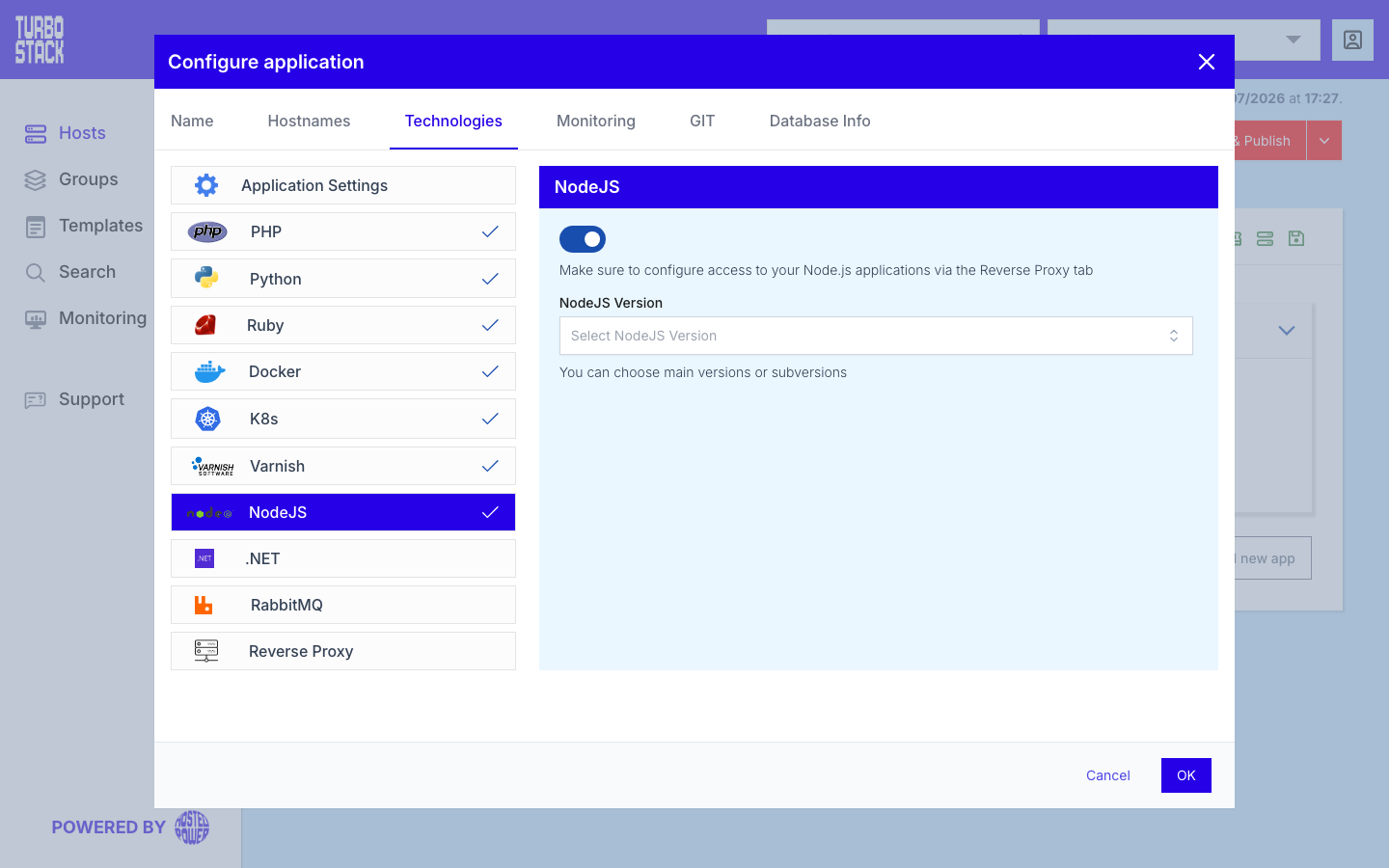
Set it in the GUI
- Open the host and select the application.
- Go to Configure application > Technologies > NodeJS.
- Choose the version.
Set it in YAML
Set nodejs_version on the application (vhost) to the major version, as a quoted string. This key
on its own installs the runtime. See Configure Node.js for the full set of keys.
nodejs_version: "24"Publish the change to apply it.
Verify and restart
Over SSH, confirm the runtime:
node -vThen restart your application so it runs on the new version - see Keep a Node.js app running. Long-running Node processes keep using the old runtime until they are restarted.
Tip
Test on a staging copy before switching a production site. A version change is quick to revert, but a shop that is down while you find out is not.
If it did not work
node -v still showing the old version means the publish has not finished or failed - check
History. It can also mean your shell was opened before the
publish ran; log in again. The app still behaving as before means its process was not restarted.
An app that no longer starts after the switch has a dependency that does not support the new
major version. Restore the previous nodejs_version and publish. See Fixing 502, 503 and 504 errors,
or contact support.